In many cases, you may not have a physical tracker available to test the full functionality of the platform. To solve that, we released an app that can emulate a GPS tracking device as if you had actually connected a real Teltonika or Ruptela tracker. The desktop app is available for Windows, Linux, and MacOS, plus a web version.
TrackBox can emulate message delivery over Device REST, HTTP, and MQTT. In this article, we’ll walk through the simplest connection options.
Sending data via Device REST
Launch the app. On the first step, it will ask you to create a master password and provide a flespi token. To share it, you need to go to the flespi dashboard and click on Access management > Tokens. Press the ‘+’ button and select Standard on the next screen.
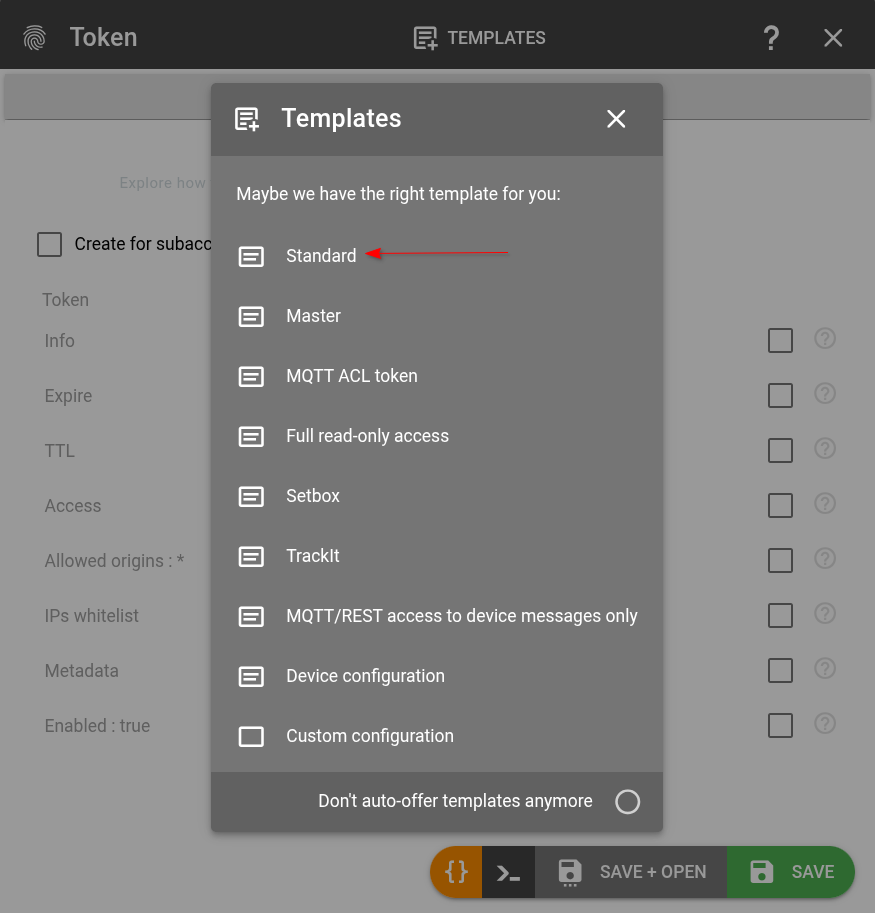
Name the token, click Save + Open, and copy it.

Return to the app login and paste the value to proceed. You're logged in.
Now, return to the flespi dashboard and open Telematics Hub > Devices and click '+' to create a new device. Enter any device name, select the device type, and specify the device IMEI that will be used as the ident (just a variety of 16 digits).
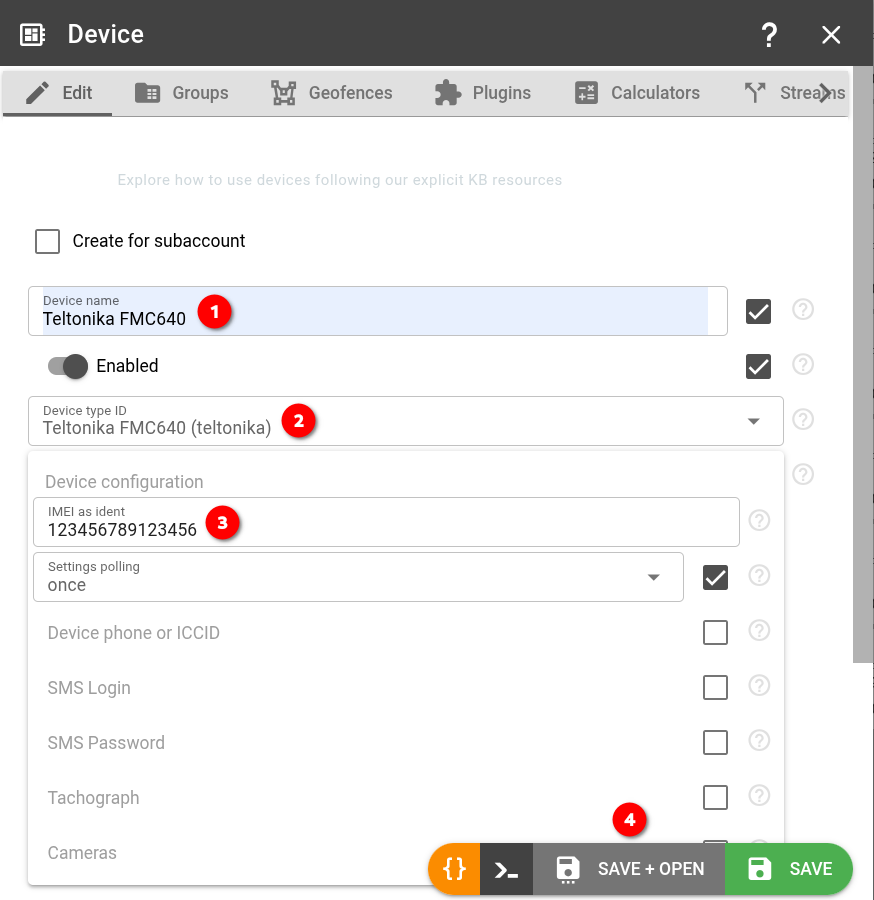
Then click Save + Open and copy the device ident from the next screen.
Creating a simulator
Now you go back to the app and need to click + Add to create a new simulator. In the new window, enter the device name. Then either upload a route file or create a new route by placing points on the map. Build by roads is a default option.
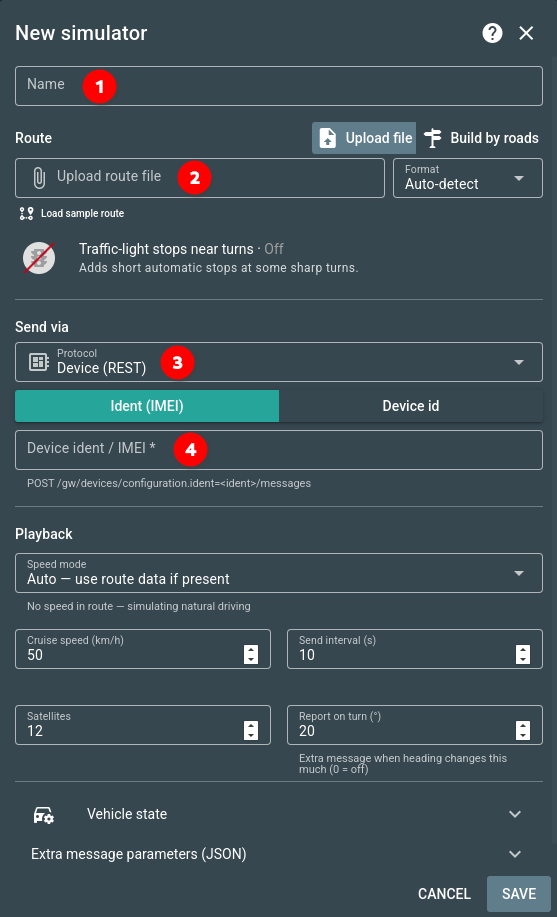
In the Send via field, select Device (REST) and paste the device ident you copied in the previous step. In the Playback section, you can configure the speed mode, cruise speed, and even the number of satellites. There is also a Vehicle state section with a list of additional parameters you can send. For example, you can simulate the state of all vehicle doors. Once everything is set up, click Save.
That’s it — your simulator is ready to run.
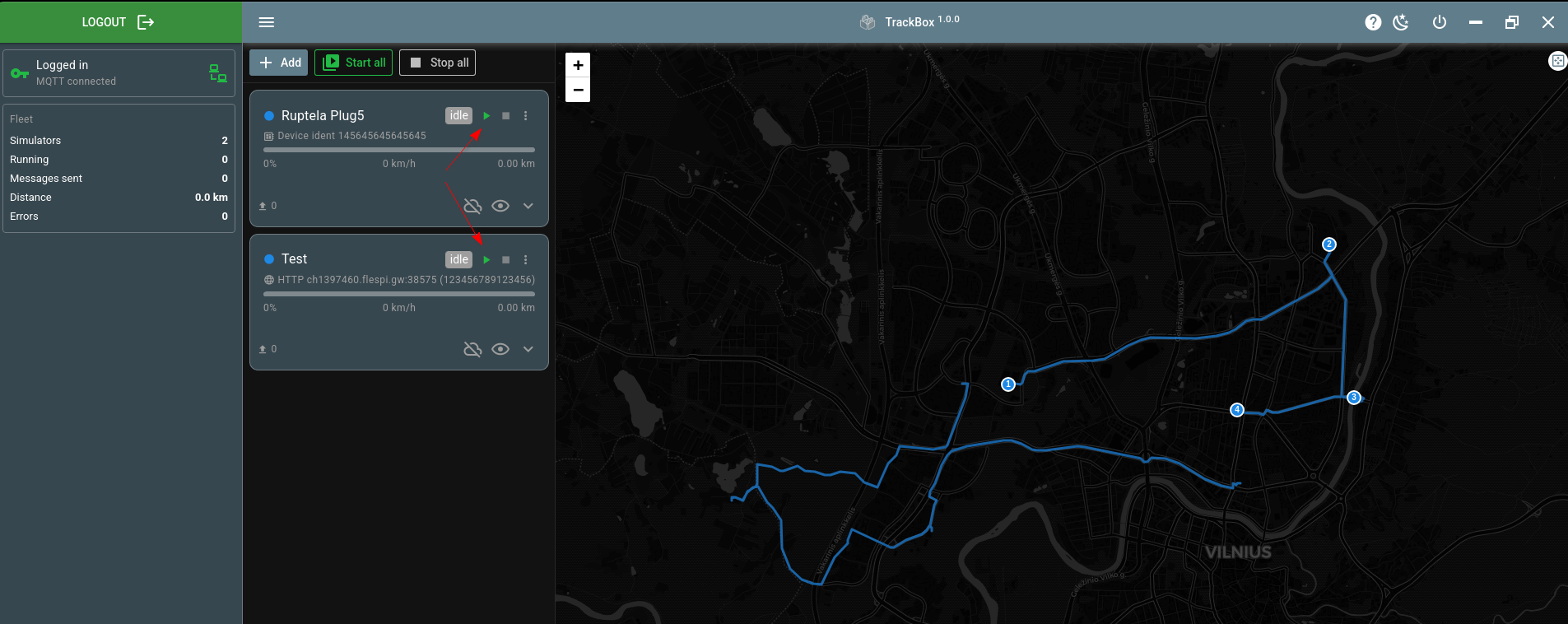
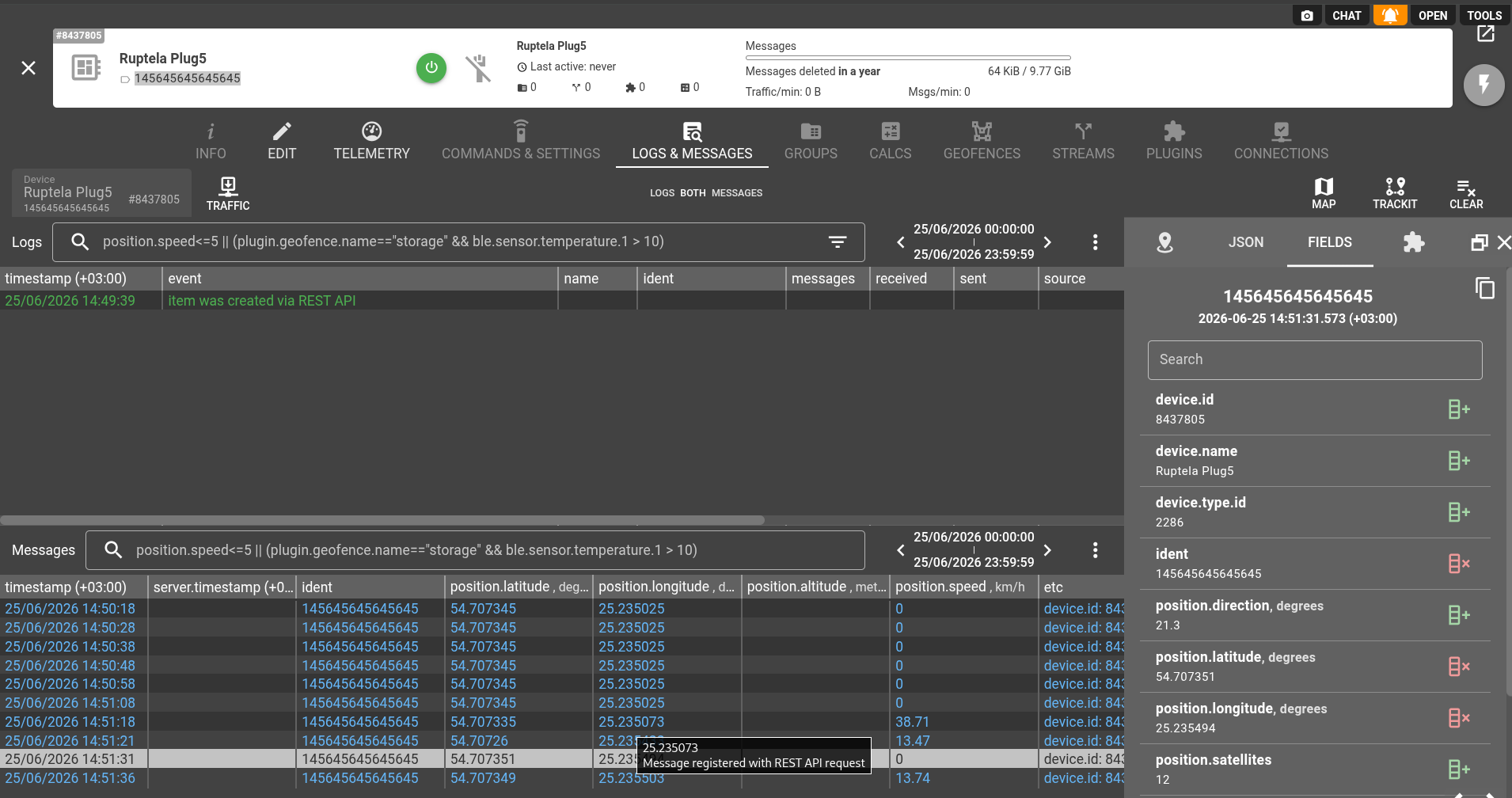
Use the green arrow button to start the simulator, pause it, or stop and reset it. Once the simulation starts, switch back to the flespi dashboard, click your device, and open either Telemetry or Logs & Messages to see the incoming messages.
Sending data via HTTP
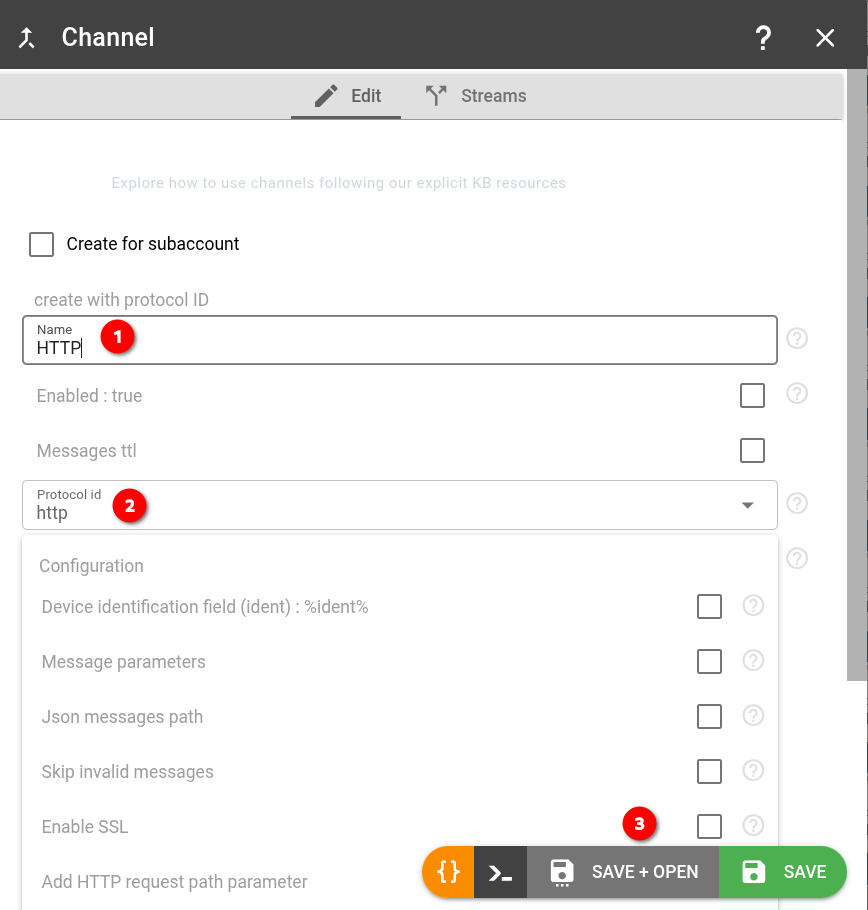
In this scenario, you first need to create a channel. Go to Telematics Hub > Channels > ‘+’. Enter a name, select HTTP as the channel type, and click Save + Open. Then open the Idents tab and bind your device by clicking Create.
After that, return to the app and create a new simulator. Follow the same steps as above, but this time select HTTP in the Send via field and specify the channel, port, and device ident. Click Save and start the simulator.
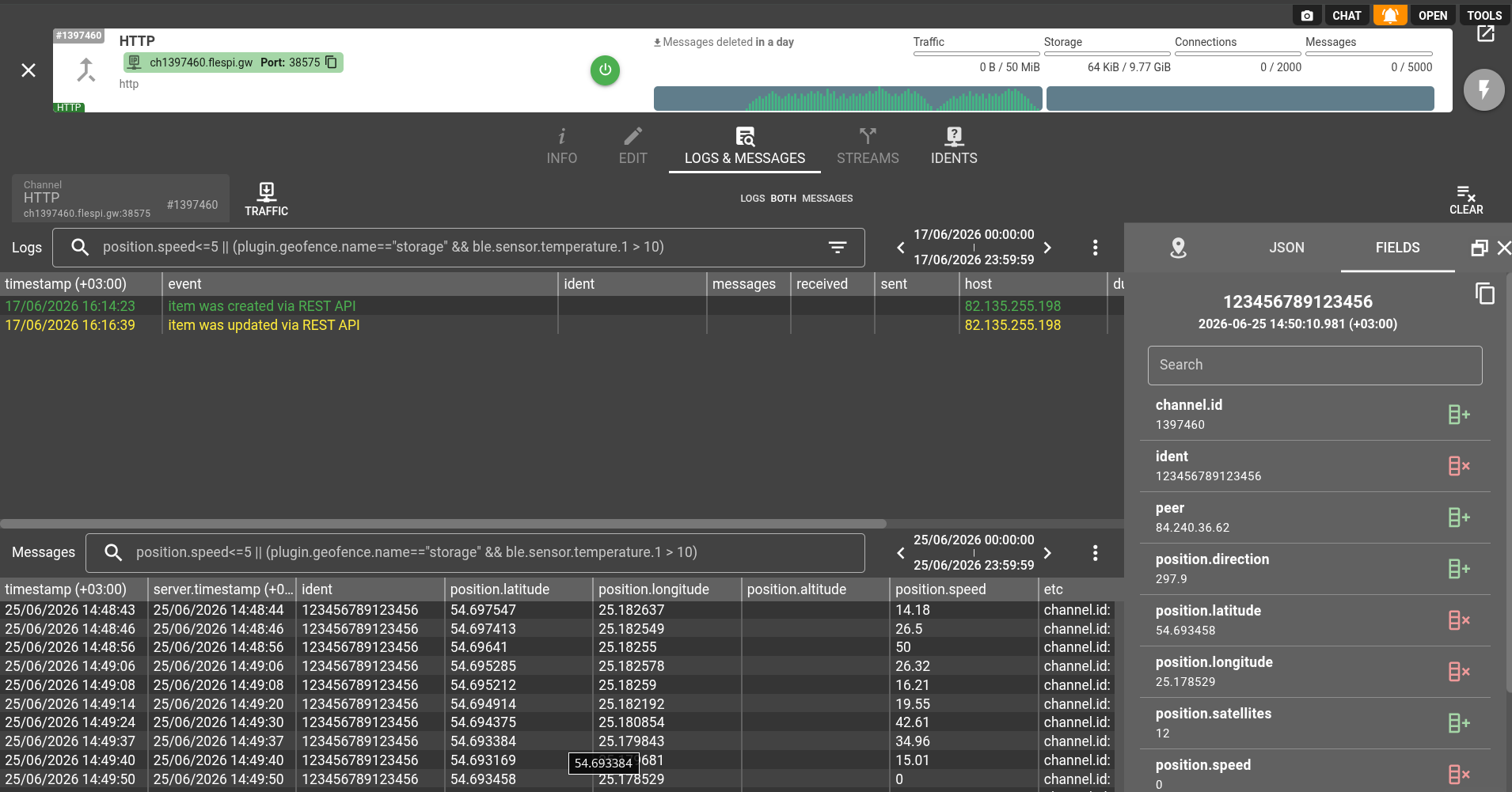
Now go to the Channels tab in the flespi dashboard, open your HTTP channel, and switch to Logs & Messages to see the messages being registered at the channel level as well.
TrackBox lets you run multiple simulators at the same time, emulate events via MQTT, and control other parameters to reproduce the behavior of a real tracking device more closely. And yes, it’s open-source, so it’s available for free. Quick note about browser version: you need to keep the tab open.
We hope it removes yet another barrier to getting started with flespi and shows how simple and convenient it is to work with the platform.