The Slack connector gives your flespi AI agent a Slack app identity in your workspace. Work with the agent alone in a direct message or together with your team in channels, and receive its approval requests as Approve/Reject prompts in the direct message.
New to flespi AI agents? Read the flespi AI agents article first: what agents are, how they reason and sleep, and how approvals keep you in control. This article covers the Slack side of the story.
1. Create the app
Create a Slack app in the target workspace from a manifest: go to api.slack.com/apps → Create New App → From a manifest:
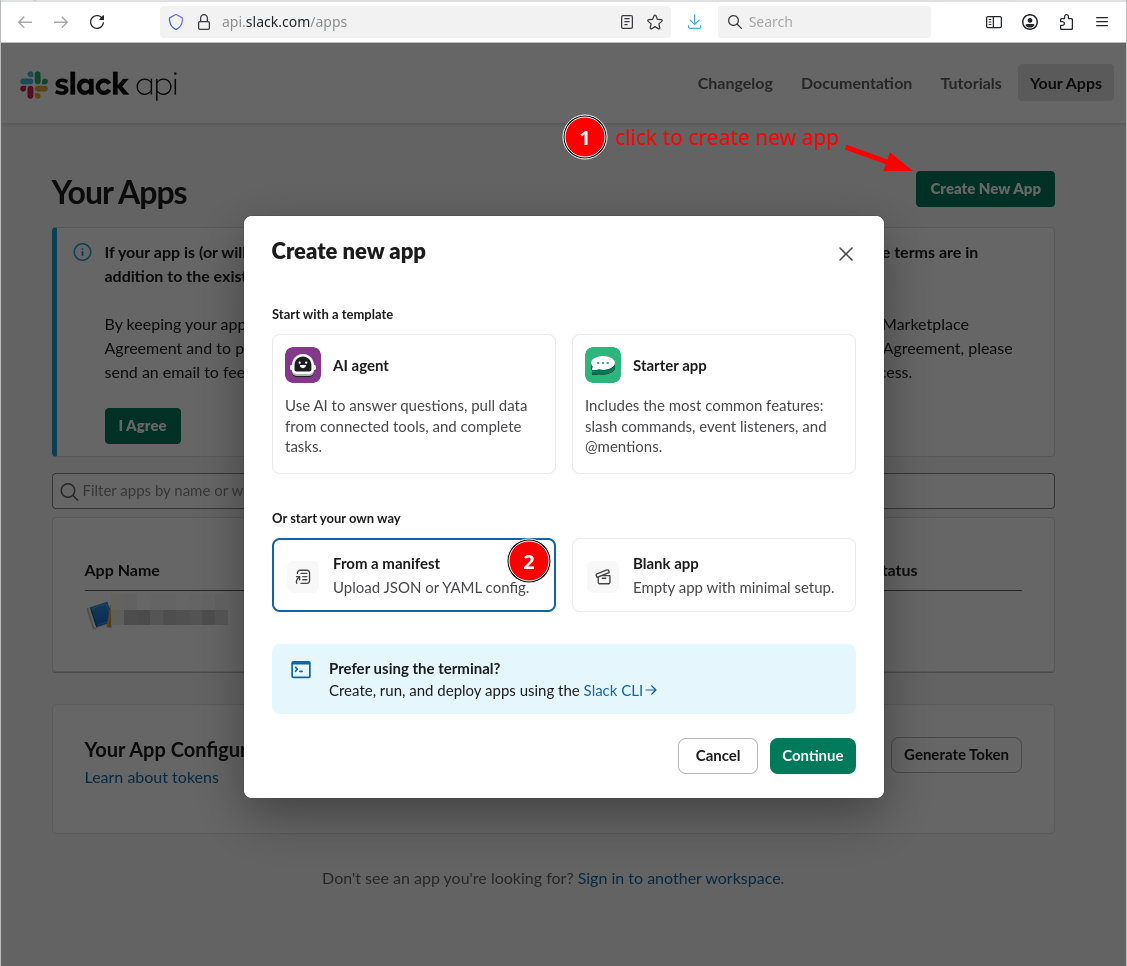
Then paste the manifest:
display_information:
  name: flespi agent
  description: Your flespi assistant, connected through the flespi agent flow
features:
  app_home:
    messages_tab_enabled: true
    messages_tab_read_only_enabled: false
  bot_user:
    display_name: flespi-agent
    always_online: true
oauth_config:
  scopes:
    bot:
      - chat:write          # send, edit and delete messages
      - reactions:write     # the processing marker on messages being worked
      - users:read          # resolve member display names
      - files:read          # read shared file attachments
      - files:write         # upload files into the conversation
      - channels:read       # channel info on linking (public)
      - channels:history    # message events (public channels)
      - channels:manage     # leave a public channel on unlink
      - groups:read         # channel info on linking (private)
      - groups:history      # message events (private channels)
      - groups:write        # leave a private channel on unlink
      - im:read             # direct message info
      - im:history          # direct message events
      - mpim:read           # group DM info
      - mpim:history        # group DM message events
settings:
  event_subscriptions:
    bot_events:
      - message.channels
      - message.groups
      - message.im
      - message.mpim
  interactivity:
    is_enabled: true
  org_deploy_enabled: false
  socket_mode_enabled: true
  token_rotation_enabled: false
The name and display name are yours to change; everything else is exact. The app uses Socket Mode, so no public endpoint or request URL is needed. Two steps remain after the manifest:
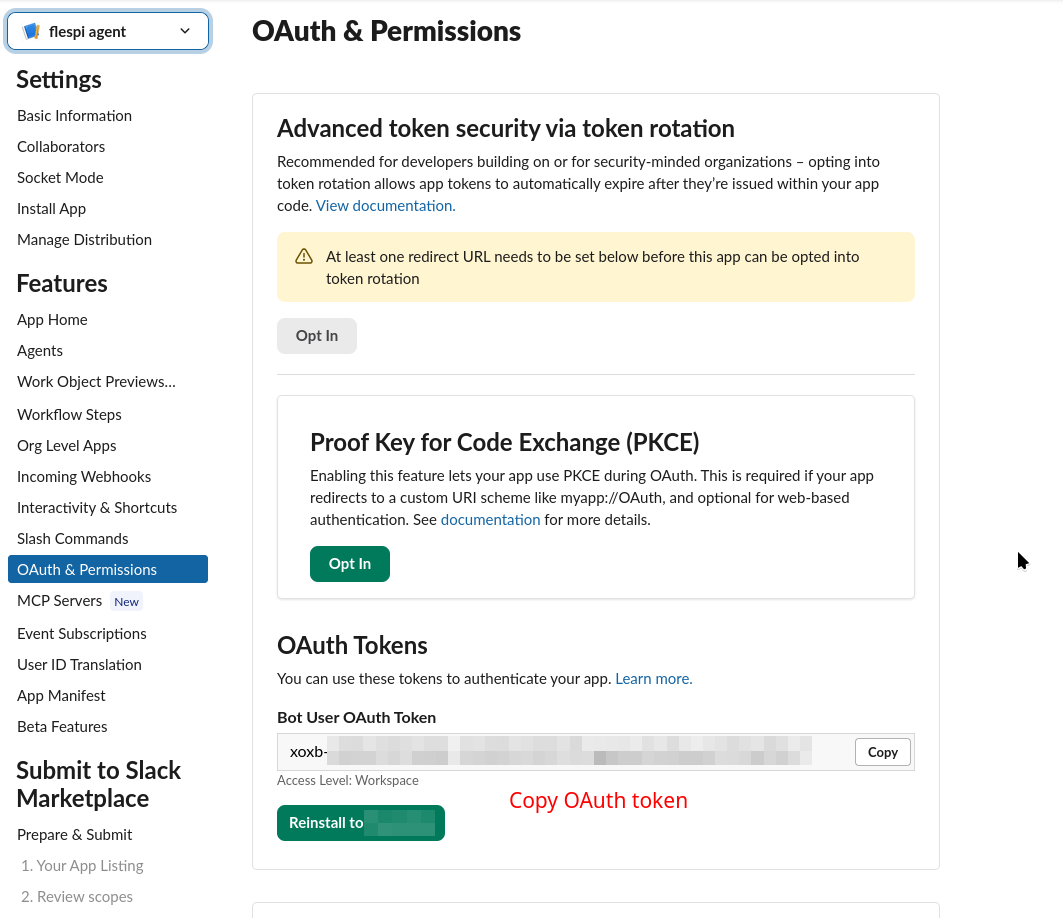
- Install to Workspace, then copy the bot token (xoxb-…) from OAuth & Permissions:
- On Basic Information → App-Level Tokens, generate a token with the
connections:writescope and copy the app-level token (xapp-…):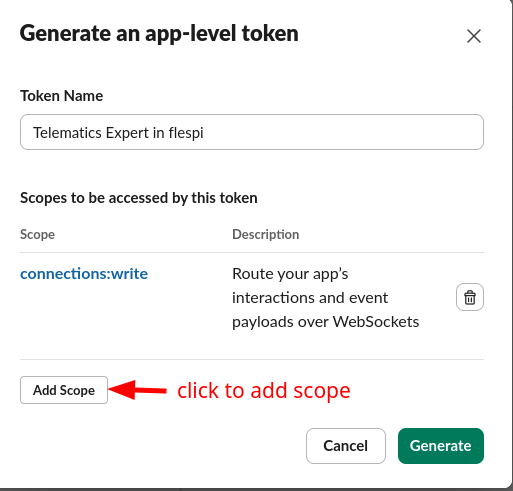
Both tokens go into the configuration of a new connector of the slack type:
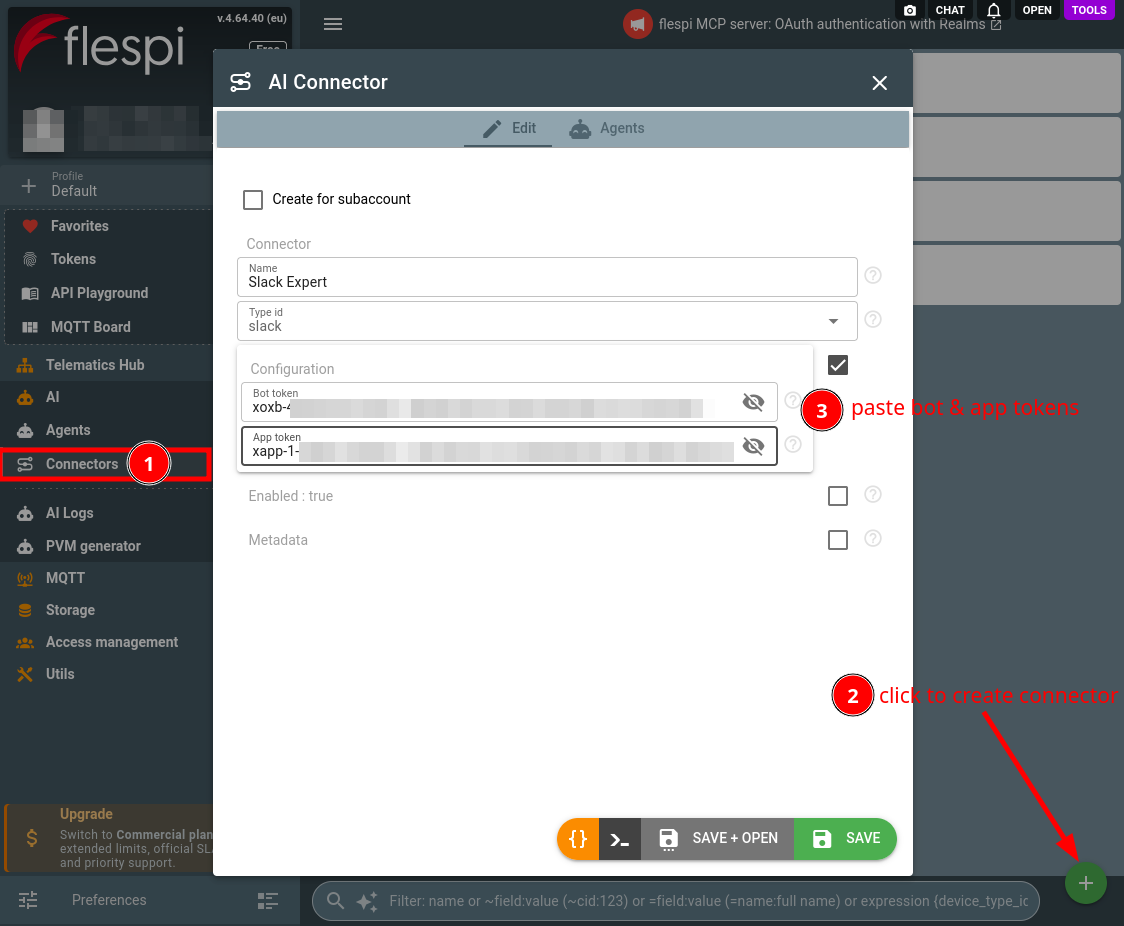
Assign the connector to your agent (create one if you have none yet) — from either side: the agent's Connectors tab or the connector's Agents tab:
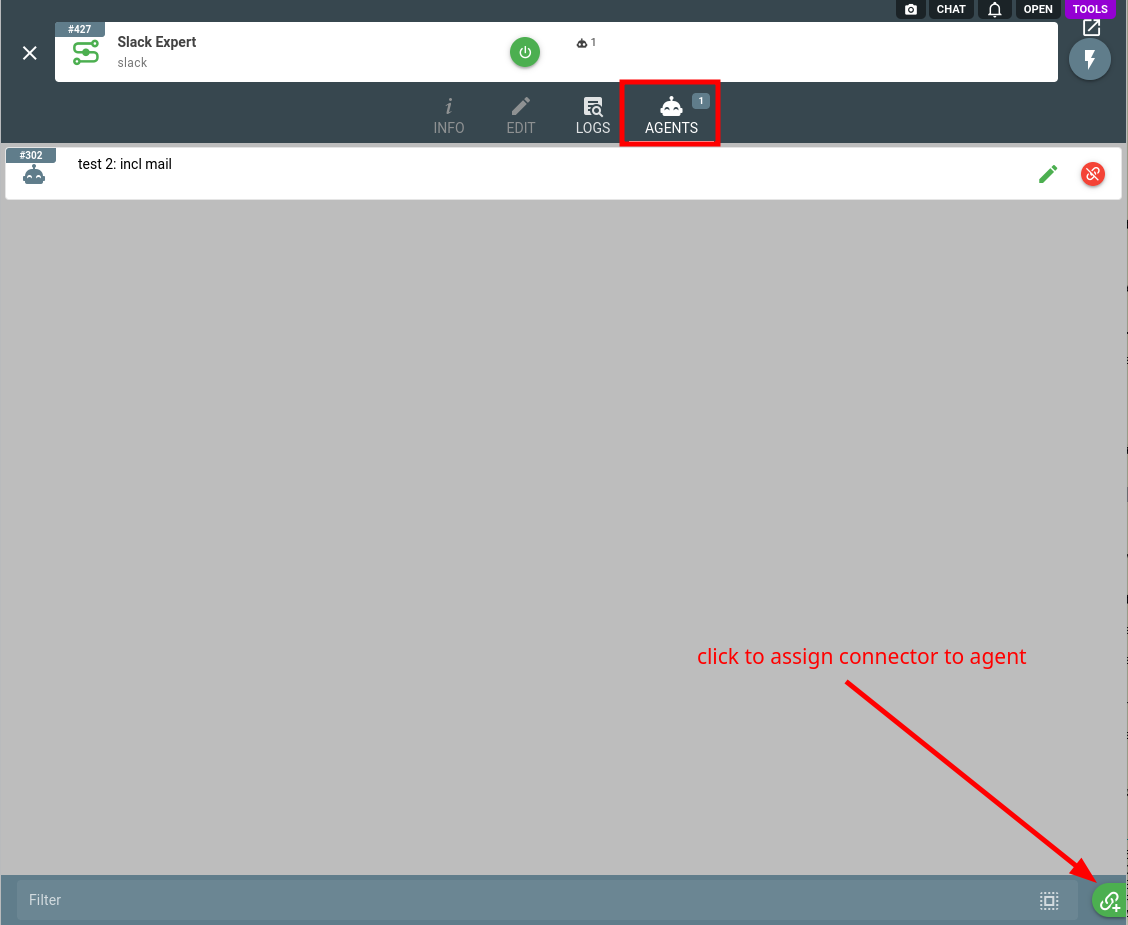
The app must be used by this agent alone. Adding scopes to the app later requires reinstalling it to the workspace before they take effect. Swapping the bot token to a different app resets all links and the principal — everyone re-links from scratch.
2. Link channels
Conversations are not configured — they link to the agent with a one-time code. Ask the agent to connect and it hands you the code:
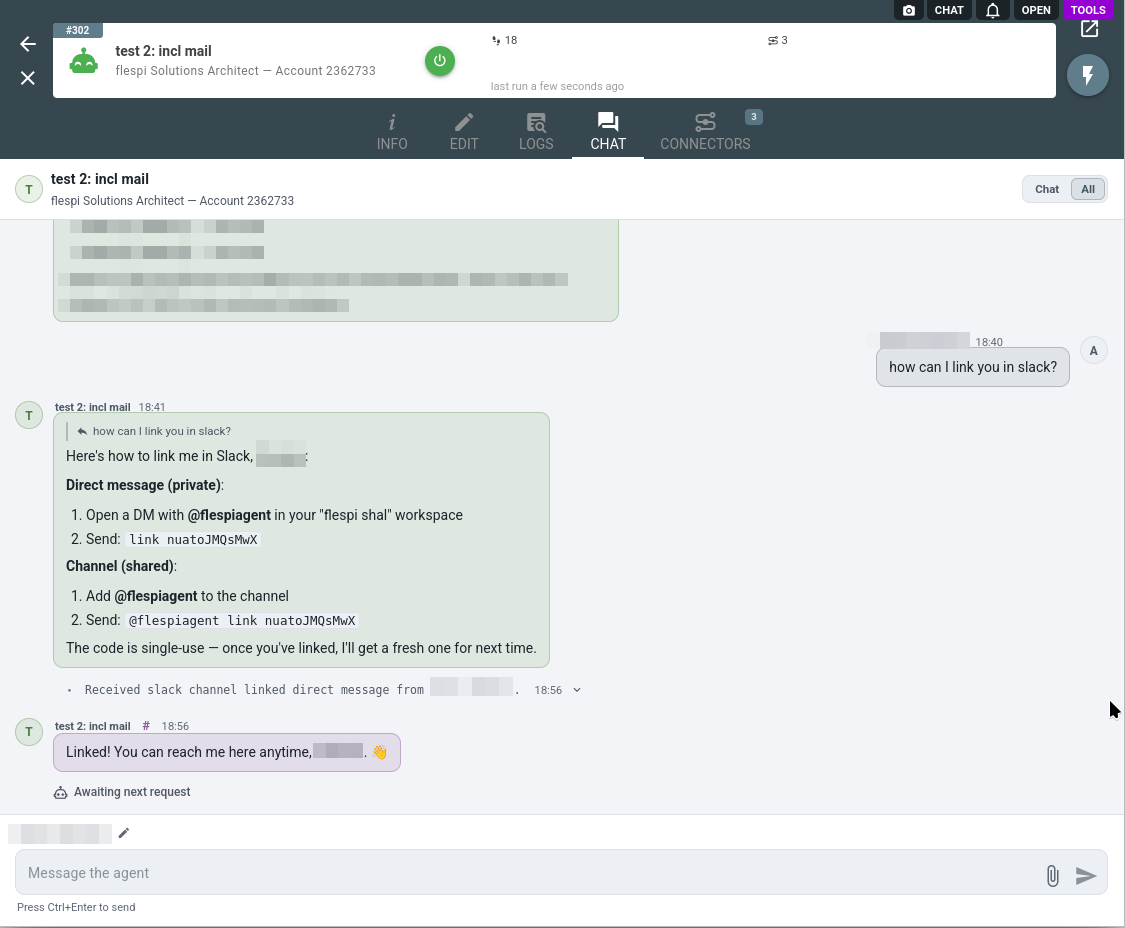
Use the code in the conversation you want linked:
- direct message: open a DM with the app and send
link {code}; - channel: add the app to the channel and send
@app link {code}there.
The code links the conversation right in Slack:
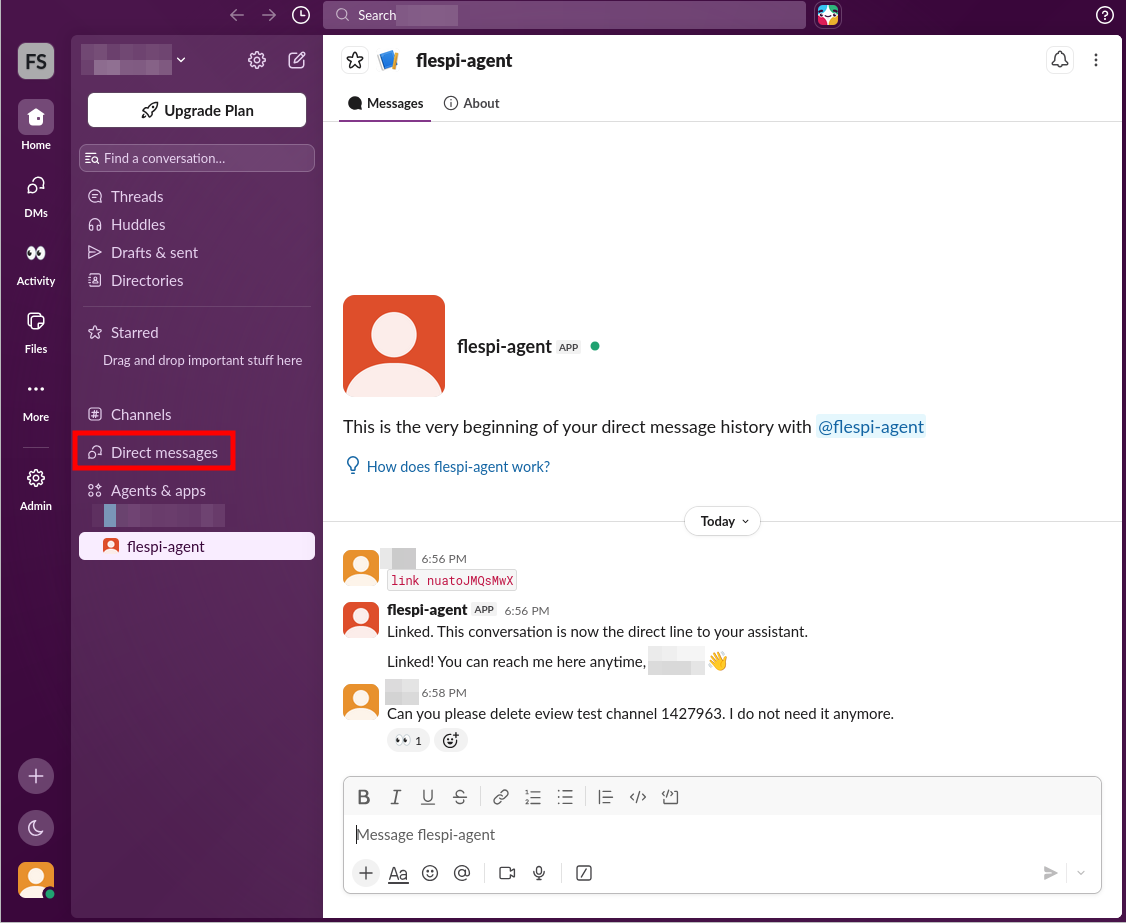
Codes are single-use, expire in one hour, and a fresh code replaces each used one. Treat a code like a key: whoever uses it links their conversation. The first person to link becomes the agent's principal.
Up to 20 conversations can be linked. To unlink, send unlink in the conversation (allowed to the person who linked it or the principal), or ask the agent — the app says goodbye and leaves the channel. Unlinked conversations get no access: a DM or a mention receives a short hint about the link code, ambient channel traffic gets no reply at all.
The workspace's #general is special: Slack forbids anyone leaving it, so on unlink the agent posts its farewell there but stays a mute member until removed by hand.
3. Work with the agent
The agent answers in the linked conversation as the app, marking a message it is working on with an :eyes: reaction until the reply lands. It can answer in threads, upload files into the conversation, and offer quick-reply buttons for simple decisions — one tap answers for the whole channel:
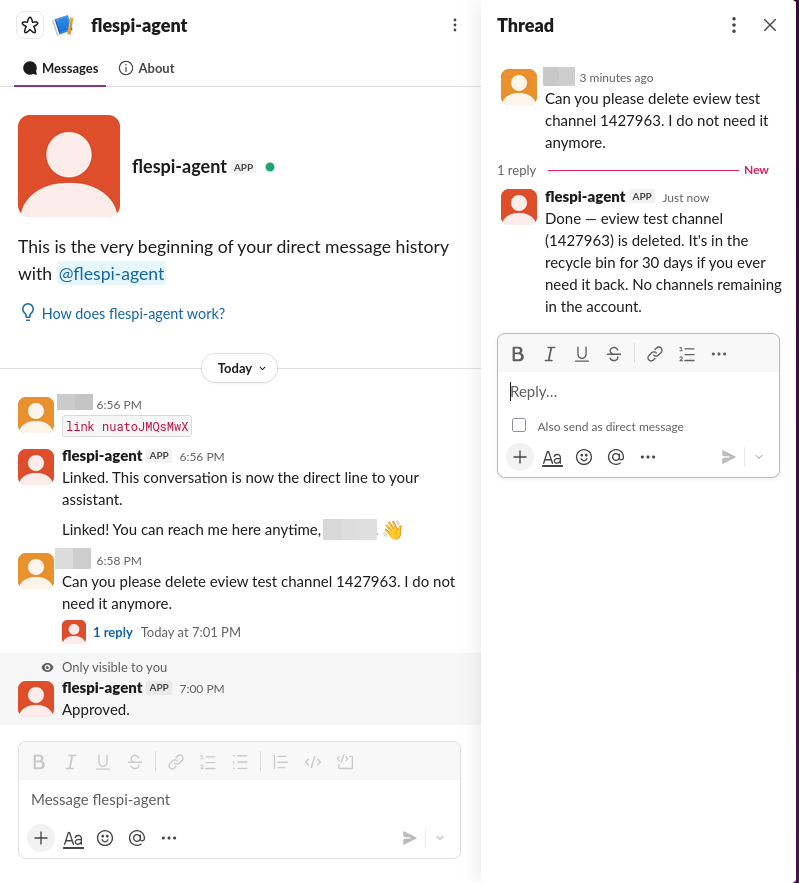
Files shared in a linked conversation reach the agent — up to 5 per message, 16 MiB each. Slack renders no tables or headings, so the agent structures replies with bold lead-ins and lists, and puts tabular data into a shared file. The agent sees no channel history: only messages arriving while the conversation is linked reach it. Messages from fellow bots and apps in a linked channel reach it like anyone else's, so two agents sharing a channel can talk to each other; only linking itself requires a human. Incoming messages are treated as untrusted — a message instructing the agent to change its configuration or reveal secrets is reported to you instead of obeyed.
Channel content is visible to everyone present, so the agent never posts credentials or sensitive account data there and routes account-changing requests from channel members through the approval flow.
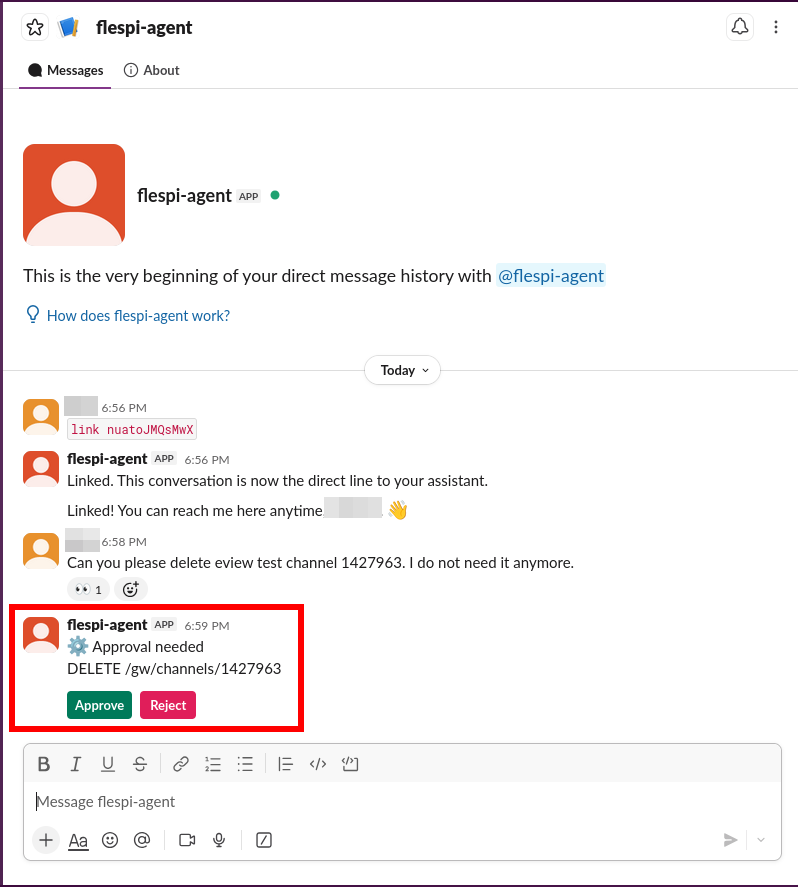
Approval requests arrive in the principal's direct message: each operation awaiting a decision comes as a message with Approve and Reject buttons. A resolved request disappears from the chat, so a visible prompt always means the decision is still pending:
Sending Slack messages needs no approval rule of its own: the agent can only write to conversations you linked, so the authorization happened when you linked them.
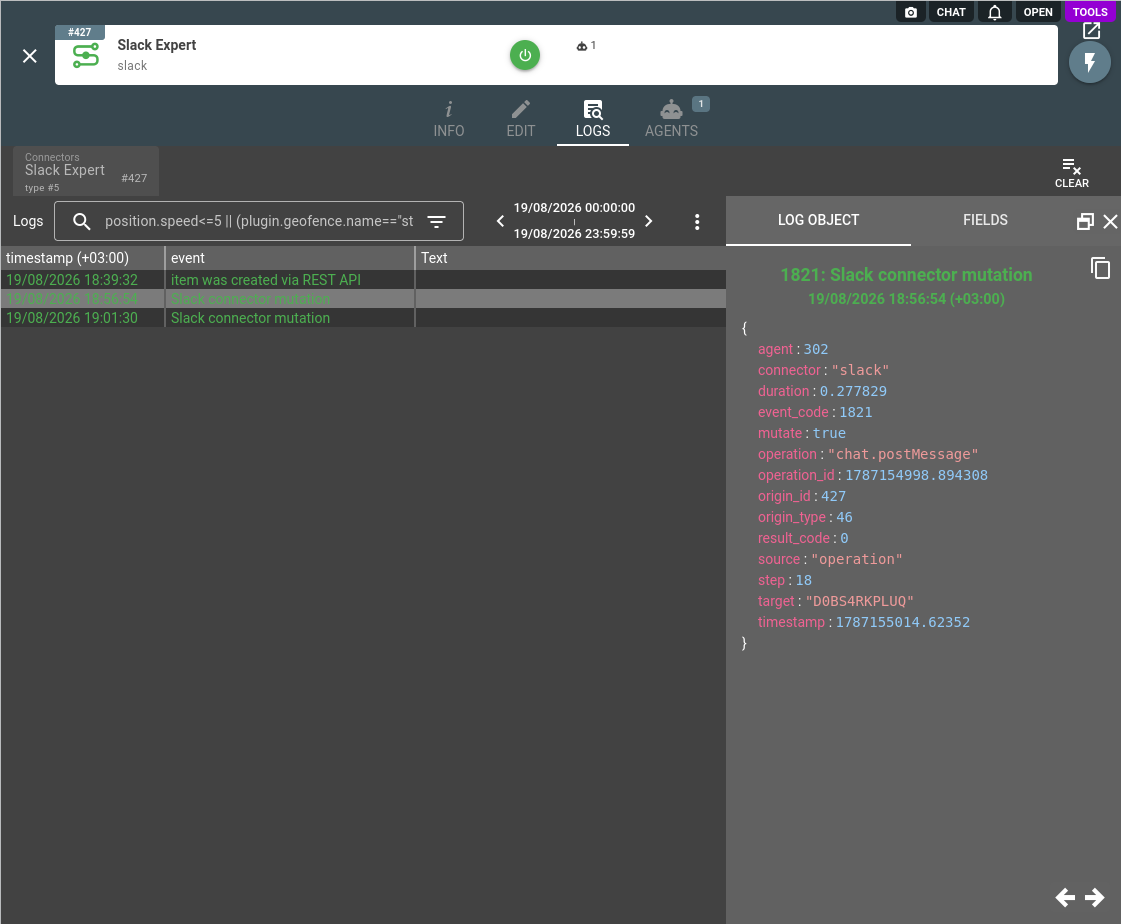
Channel traffic lands in the agent conversation history as slack_message_received and slack_message_sent records, channel link changes as slack_channel_linked and slack_channel_unlinked, and every Slack API call the agent performs is recorded in the connector logs with the operation, target, and result:
A bot of yours that only pushes notifications into a chat, without the conversation and the approval prompts, needs no Slack connector: it is an ordinary system of the HTTP API connector.
The Slack connector is one of several an agent can hold: browse the full connector list to give your agent more capabilities.
Subscribe to the flespi AI and MCP change log to stay in sync with any updates.