With decades of hands-on experience in tachograph data management and regulatory compliance, Idha Online has built a reputation as one of Sweden’s most trusted platforms for secure tacho file storage. Naturally, our customers often ask: Can we use Idha Online as the long-term repository for our tachograph data?
The short answer is yes, and the integration can be completed in just a few straightforward steps.
Step 1. Connect the tachograph to flespi
Before proceeding, ensure the tachograph is already provisioned and correctly configured in flespi. Establish connectivity and validate data flow (the device status is active, tacho files are generated and visible in the dashboard). You can refer to this guide.
Step 2. Set up a token
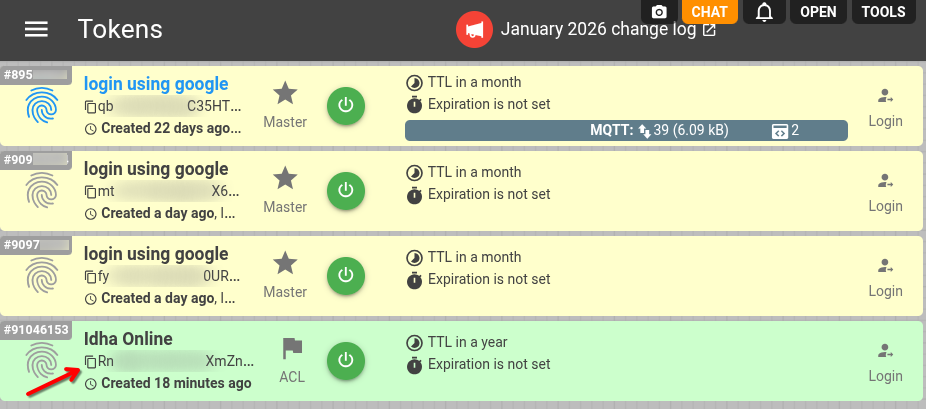
Idha Online needs an ACL token to get access to flespi. In your dashboard, you need to go to Access Management and then click on Tokens, then – on a ‘+’ sign to create a new Custom one.
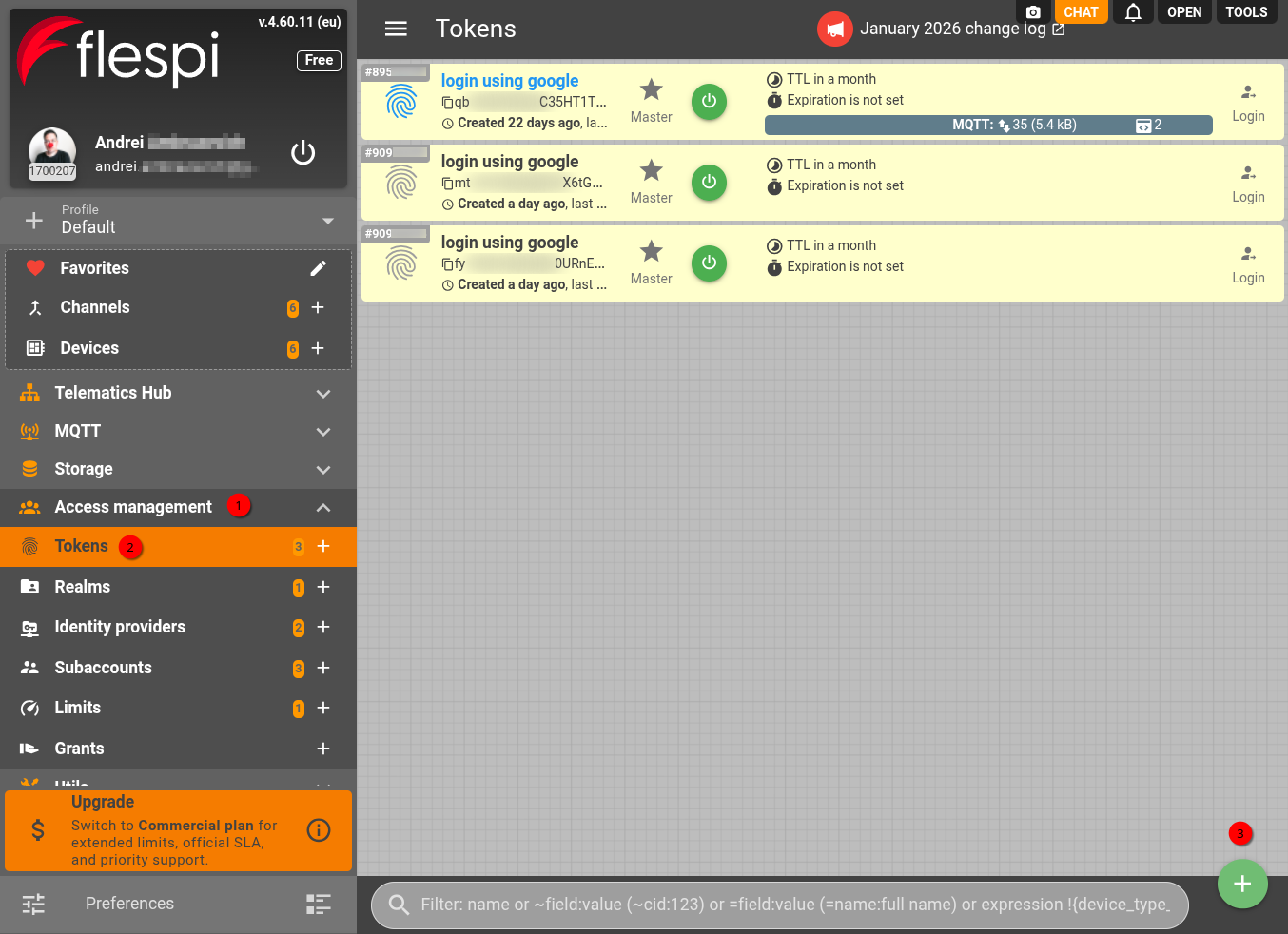
A new window will open with token variants to select – click on ‘Custom configuration’ and then on the '{}' button.
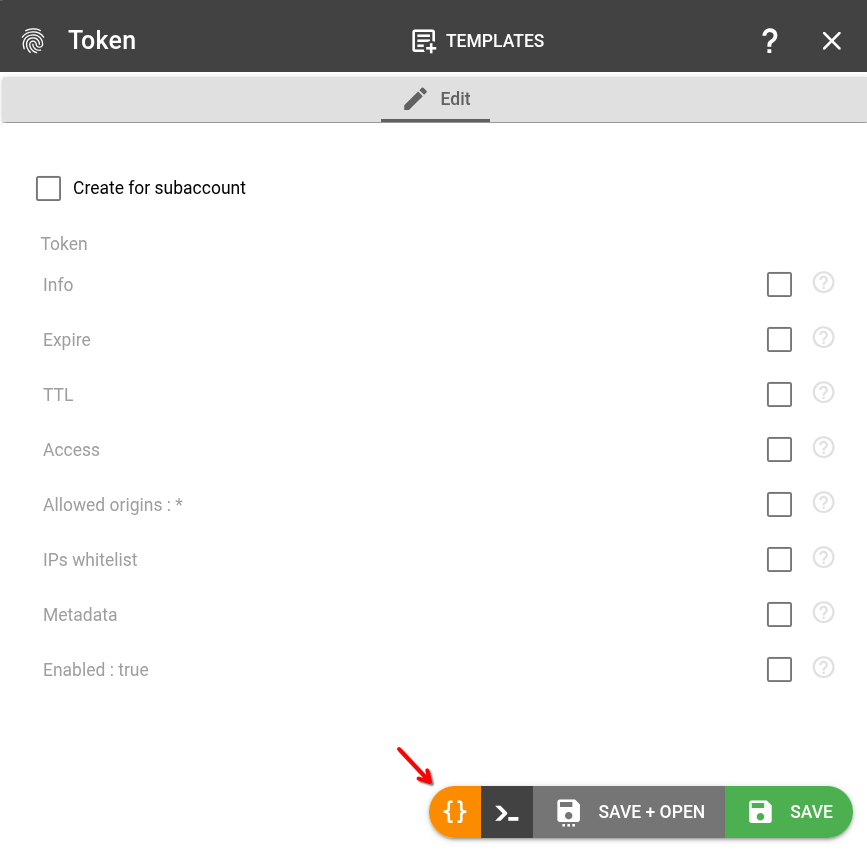
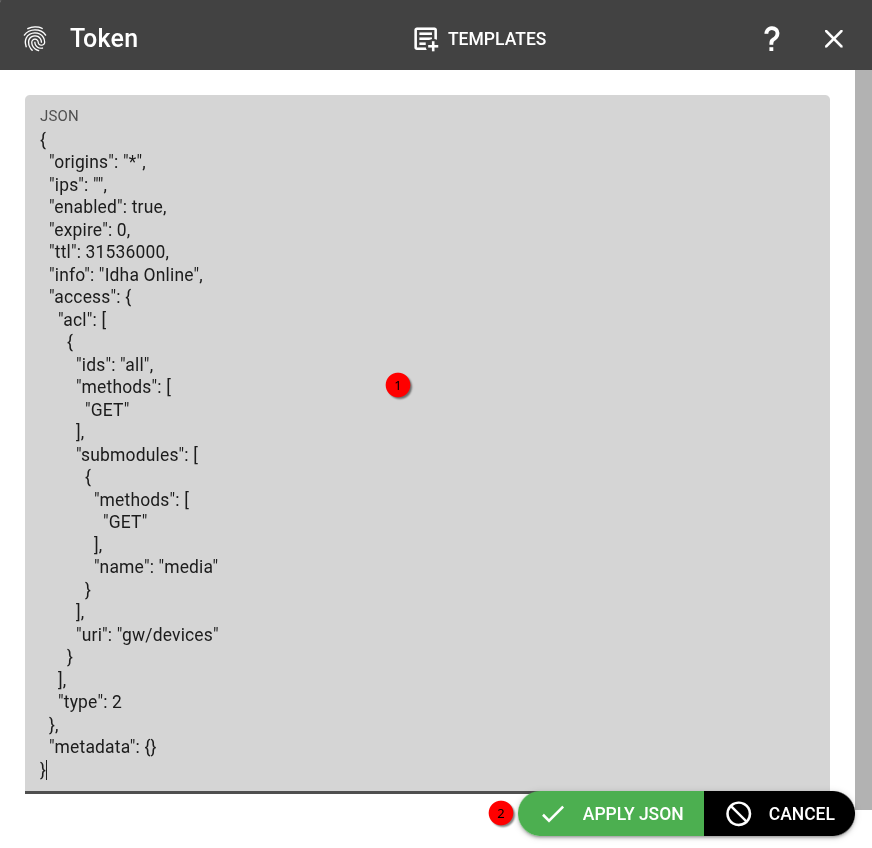
Now you need to copy-paste the following JSON code:
{
  "origins": "*",
  "ips": "",
  "enabled": true,
  "expire": 0,
  "ttl": 31536000,
  "info": "Idha Online",
  "access": {
    "acl": [
      {
        "ids": "all",
        "methods": [
          "GET"
        ],
        "submodules": [
          {
            "methods": [
              "GET"
            ],
            "name": "media"
          }
        ],
        "uri": "gw/devices"
      }
    ],
    "type": 2
  },
  "metadata": {}
}
…and click on the ‘APPLY JSON’ button.
You will get all the required fields filled in.
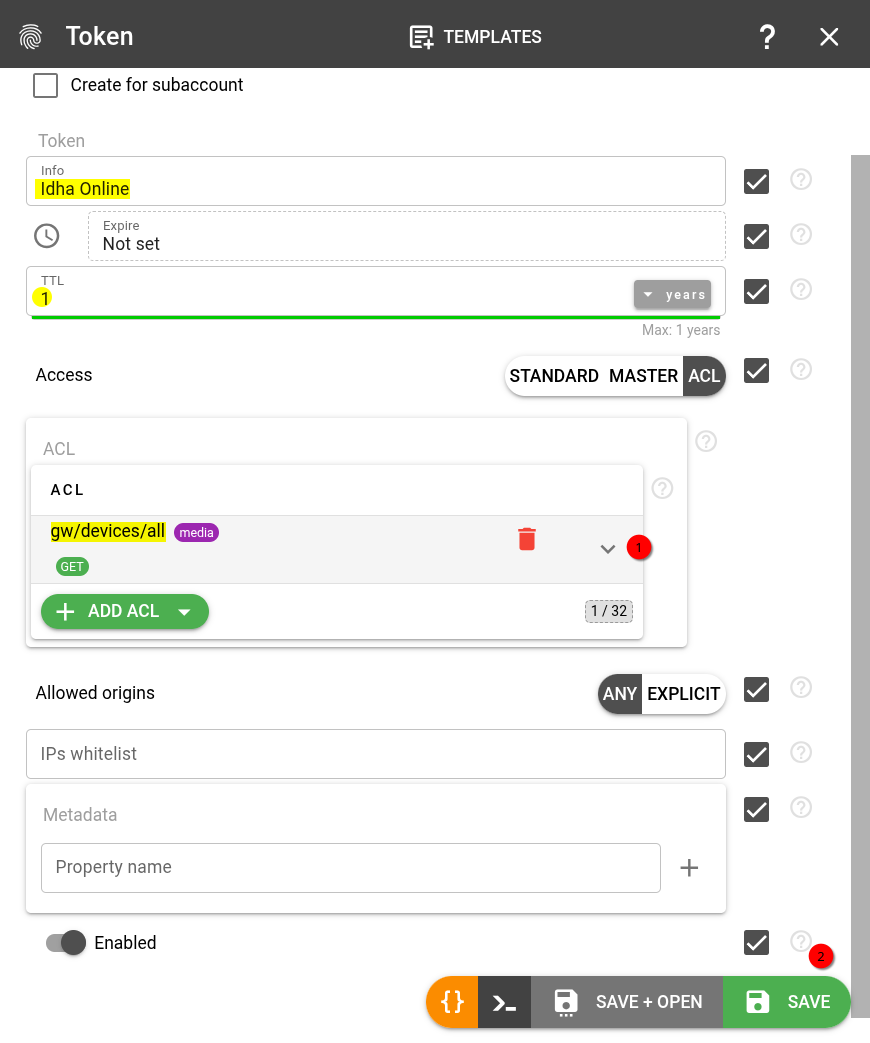
Please note that by default, all tacho devices are selected in the Media submodule, so if you need to send data only from a limited number of them, you can click on the dropdown list and select the needed ones. Then click the ‘Save’ button when you’re done to see the new token appear on the list. Now, ticking on the ‘copy’ icon next to the token name, you can copy its value to the clipboard.
Step 3. Prepare your Idha Online account
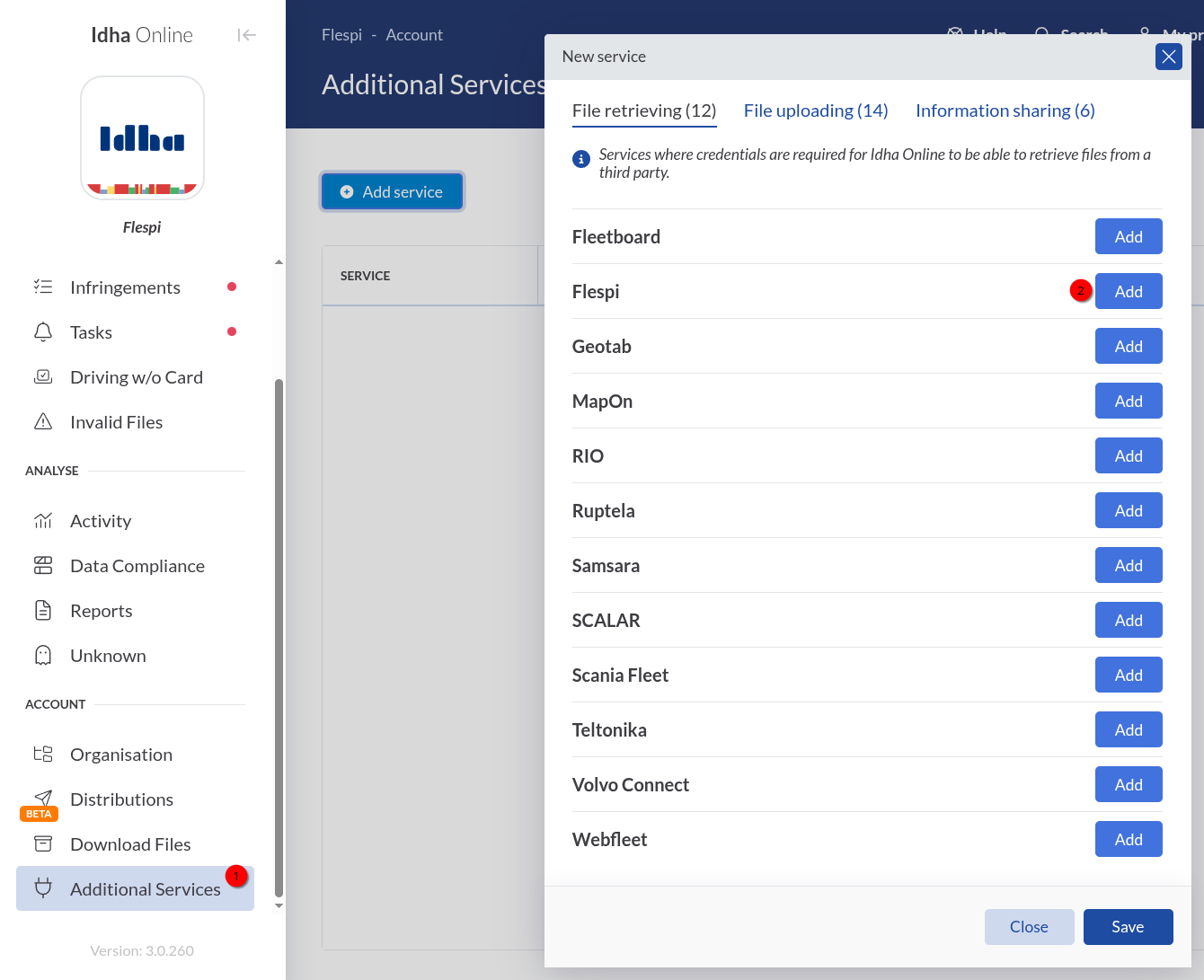
You need to log in to your Idha Online account and proceed to the 'Additional services > Add service' and click on the ‘Add’ button opposite the Flespi.
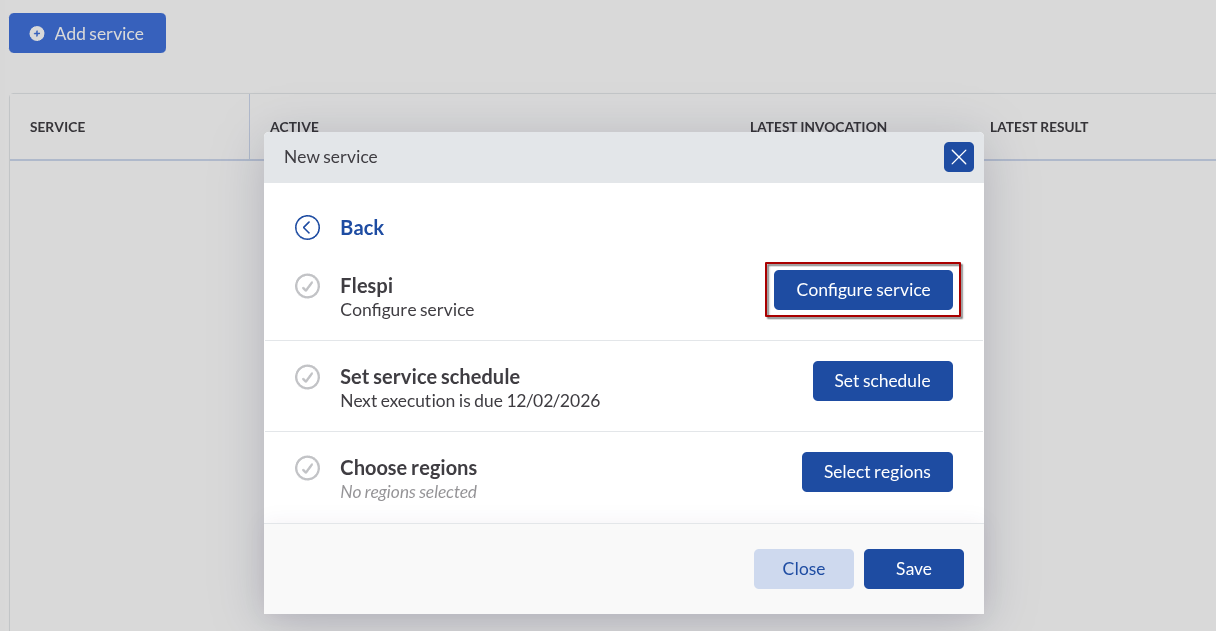
In the pop-up window, you will need to complete just three simple steps. The first one is ‘Configure service’.
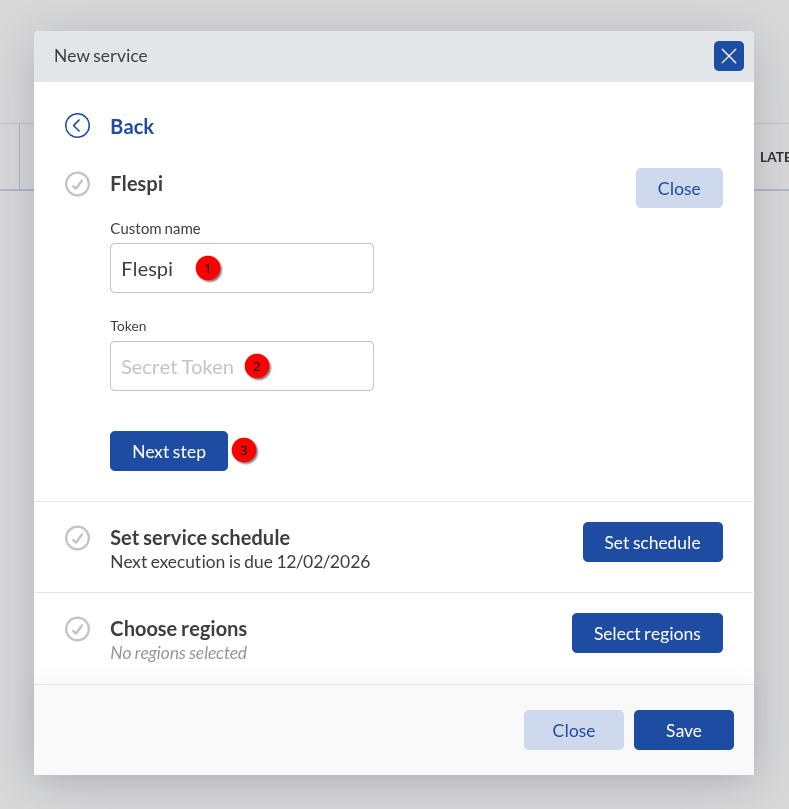
Enter the name of your choice and paste the token value we’ve copied previously into the ‘Token’ field, then click ‘Next step’.
Here you can select an interval for automatic .ddd files retrieval – Daily/Weekly/Monthly.
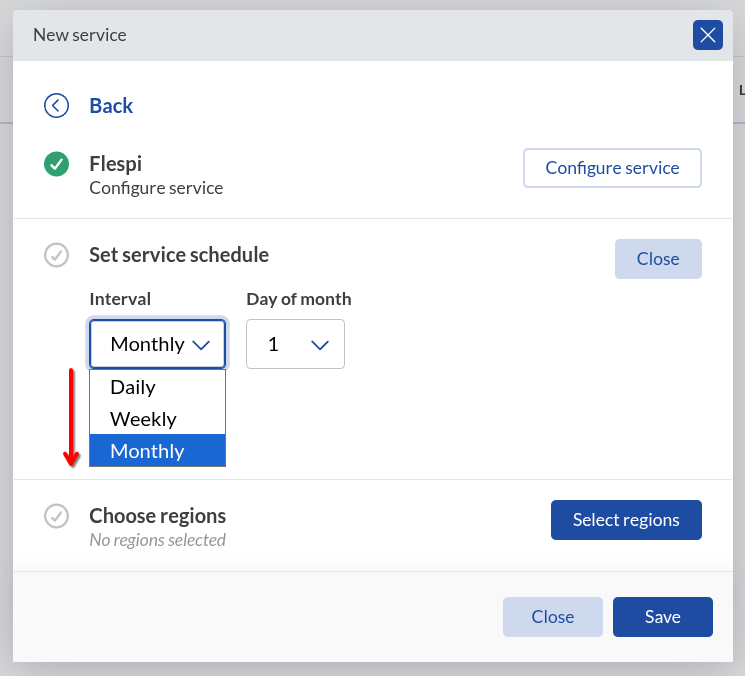
…and you might need to select regions (‘Auto connect all’ is the default option).
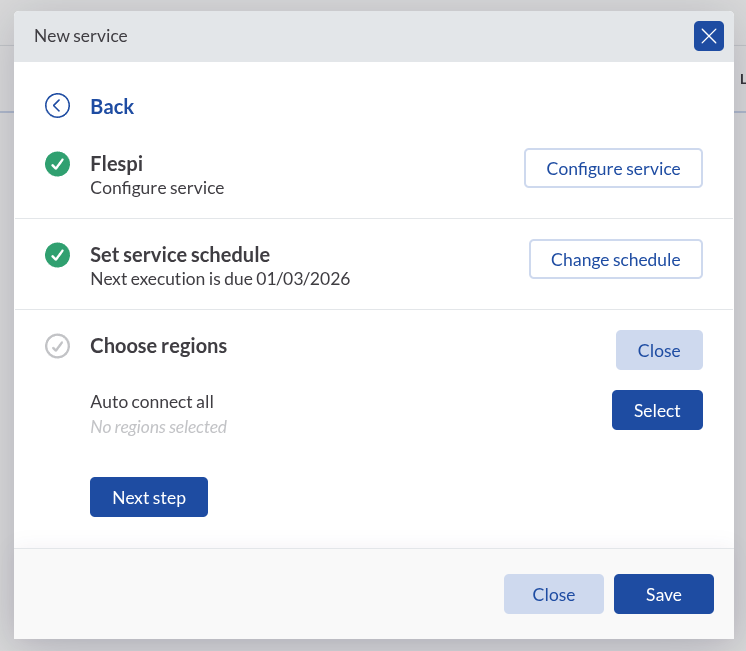
That’s it!
Daily operations and data retention
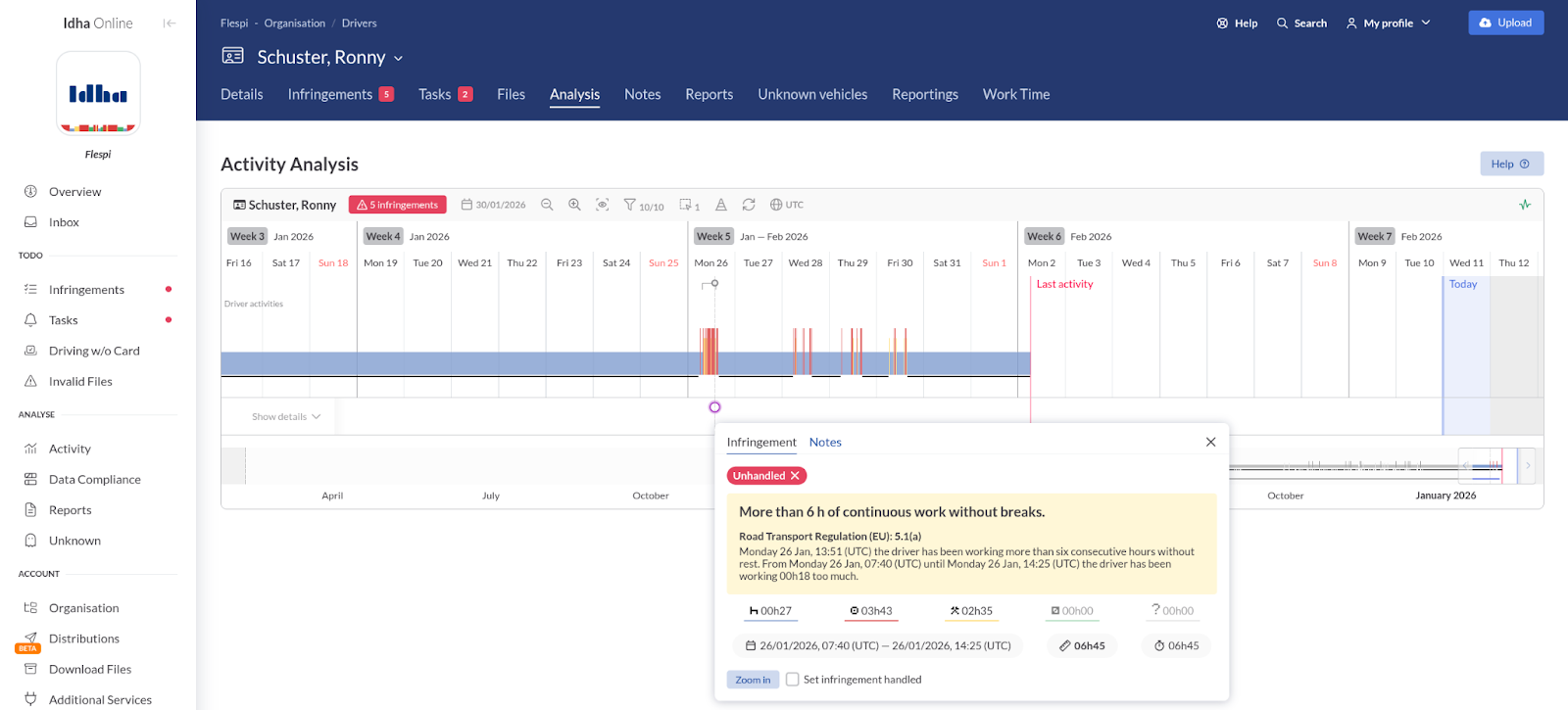
Once configured, the workflow runs autonomously: flespi receives tachograph data and generates files while Idha Online securely requests tacho files, stores them, guarantees their integrity and availability, and supports audits and compliance checks.
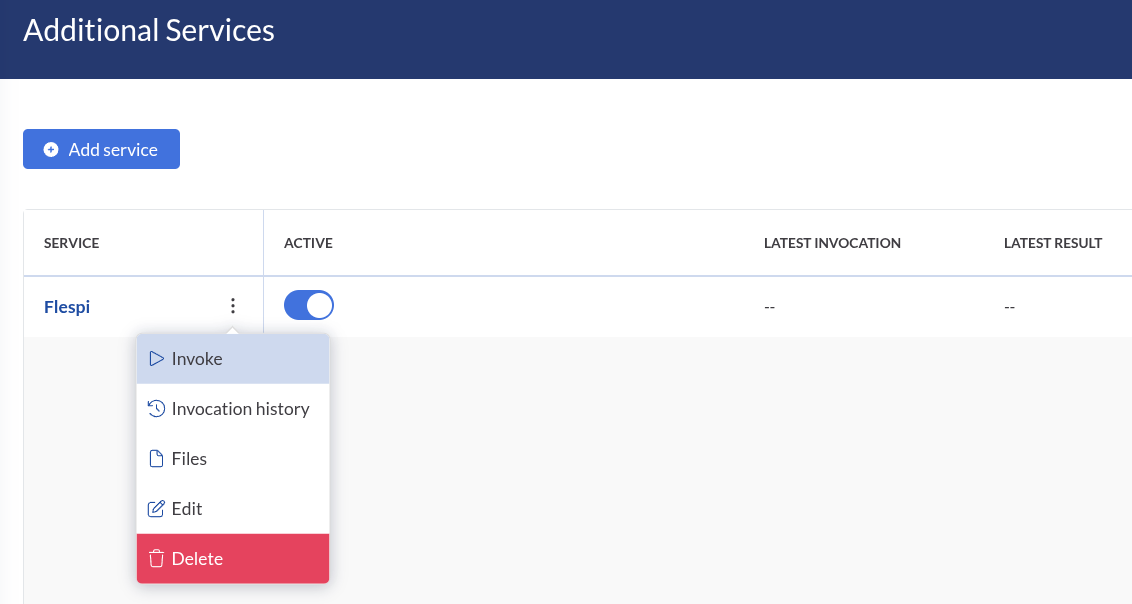
If you’d like to download tacho files immediately, bypassing the scheduled time, you can do it by going back to the ‘Additional services’ tab and clicking on the ‘three-dots’ icon, and then choosing ‘Invoke’.
In case of any questions – feel free to reach out in our chat …And stay in sync! :)