AgentBox is the flespi app for working with your flespi AI agents. It brings the agents of your account, their chats, tasks, apps, connectors and approval rules into one place. Open it at agentbox.flespi.io, install it on your phone or desktop as an app, or use it inside the flespi panel: the AGENTS button lists your agents and opens the one you pick in AgentBox, and the Chat tab of an agent opens its AgentBox chat. You can also embed an agent chat into your own application.
Agents list
The home screen shows all agents of the account. Agents that need you come first under Needs your attention: an agent waiting for your answer or approval, an agent with a failing connector, or one with unread messages. Each card shows what the agent is busy with, when it last worked and when it wakes up next, its tasks, apps and connectors, and its intelligence level. Agents that are switched off are greyed out. Use Find an agent to search by name.
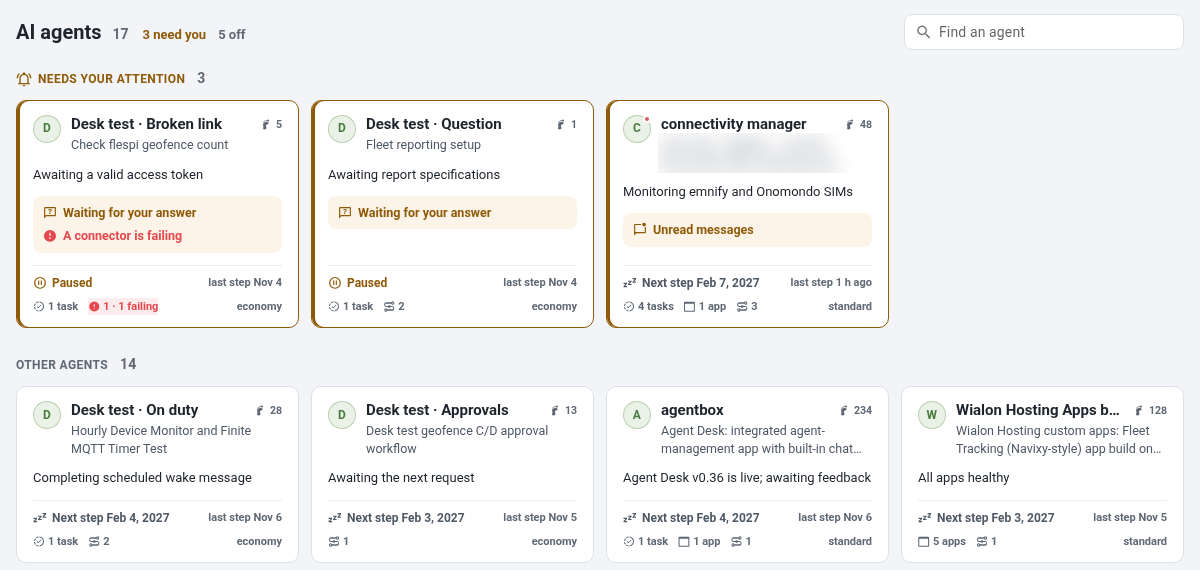
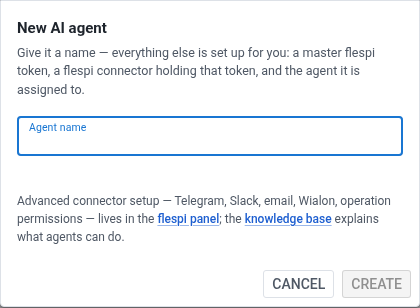
To create an agent, click New agent, give it a name and click Create. AgentBox creates a master token named after the agent, a flespi connector holding this token, and the agent with that connector assigned, then opens its chat. You need a master token to create agents this way. Connectors of other types are created in the flespi panel, see How to create an agent.
Agent workspace
Click an agent to open its workspace: the chat in the middle and the side panel on the right.
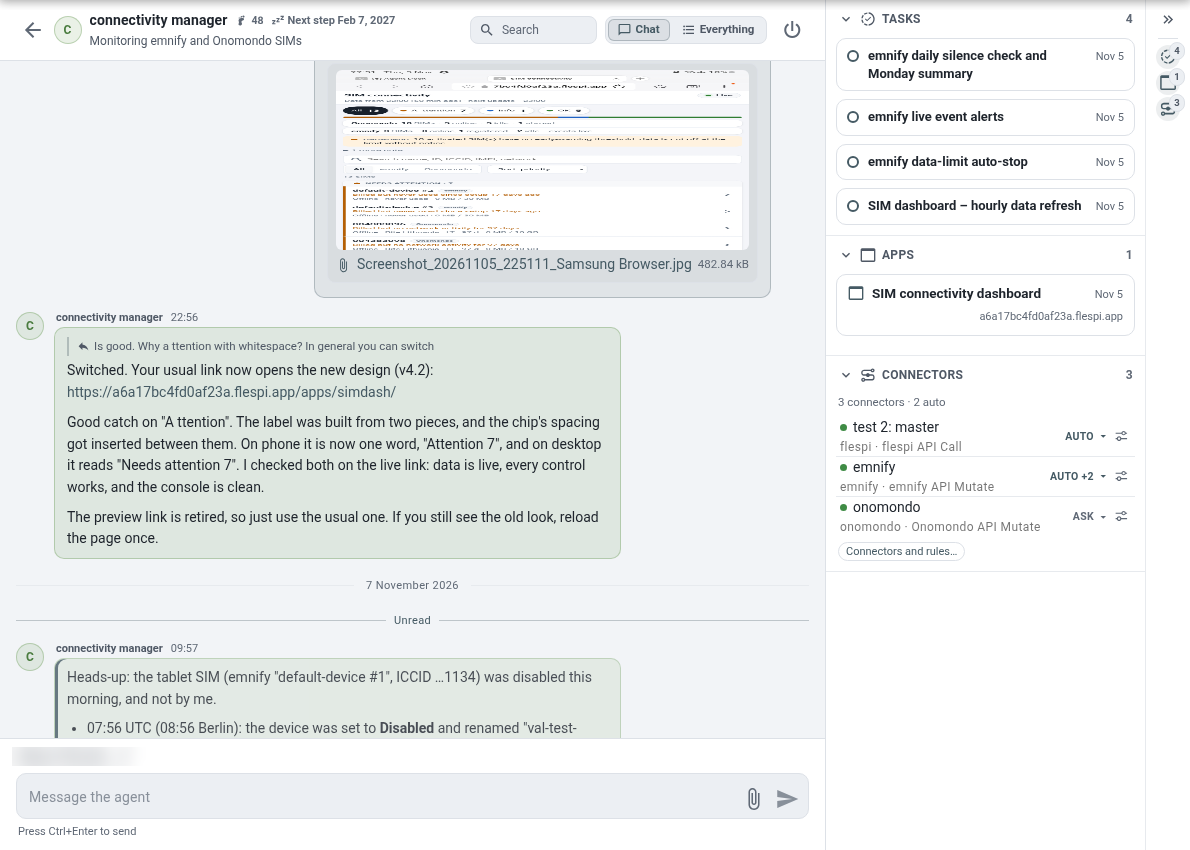
Write to the agent the way you write to a colleague and send with Ctrl+Enter. Attach files with the paperclip button or paste them with Ctrl+V. When the agent asks a question, it may offer quick replies under it, and one click sends the answer. The name above the message box is how the agent sees you, click the pencil to change it. Click the icon next to any message to mark it and everything below as unread.
The switch at the top selects the view. Chat shows the conversation only. Everything also shows what the agent did: operations with their requests and responses, and activities. A run of operations folds into one line, click it to open. Search finds text in the agent history. The power button switches the agent on or off.
The side panel has three blocks:
- Tasks - what the agent is working on. Click a task to jump to where it started in the chat.
- Apps - the apps the agent built for you. Click an app to open it.
- Connectors - the connectors assigned to the agent with their status and default decision: AUTO, ASK or NEVER. "+2" means two more rules. A failing connector is shown in red, with the error. Connectors and rules… assigns connectors of your account to the agent or takes them away.
The bell at the top turns on browser notifications about new messages.
Approvals
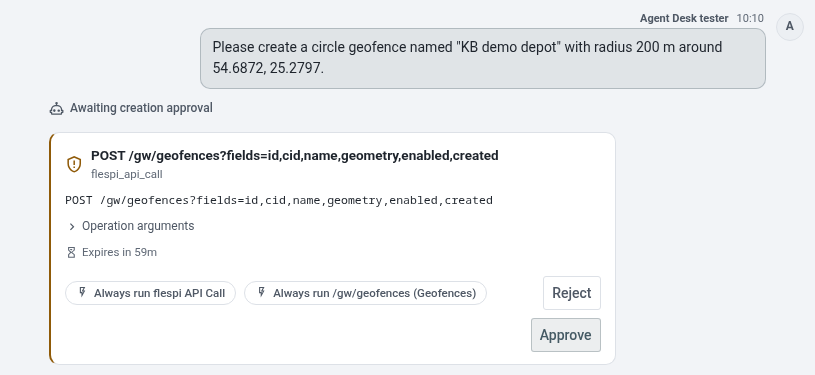
When an operation needs your approval, the chat shows a card with the operation, its arguments and the time left to decide. Click Approve or Reject. When rejecting, you can give the agent a reason. Always run … approves the operation and adds a rule for its target, so every operation on that target, for example every device change, runs automatically from then on. A request decided in AgentBox, the flespi panel, Telegram or Slack is decided everywhere.
Rules
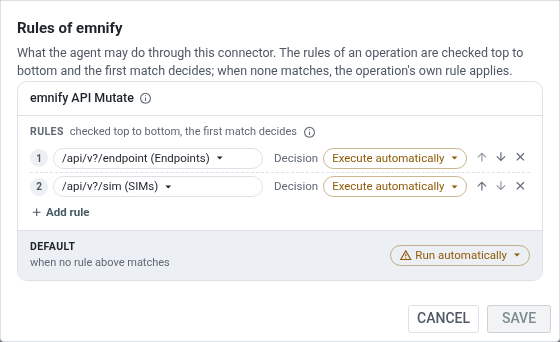
The rules button next to a connector opens its rules. Rules are checked from the top and the first match decides. Each rule names a target, such as SIMs or geofences, and a decision: Ask for approval each time, Execute automatically or Reject always. Operations no rule matches follow the default at the bottom: Ask every time, Run automatically or Never allow. Use the arrows to reorder rules, then click Save. See Operation approvals for how rules work.
Embedding
Open or embed an agent chat with a link of this form:
https://agentbox.flespi.io/#/agents/{AGENT_ID}?embed=1&token={TOKEN}
Use a token limited to that agent: the page then reaches the agent chat, approvals and history and nothing else in your account. The embedded chat keeps the side panel, so the agent apps can be opened from there too. With the connectors submodule in the token, the embedded chat also shows the Connectors block, and with PUT the user can edit its rules. Optional parameters:
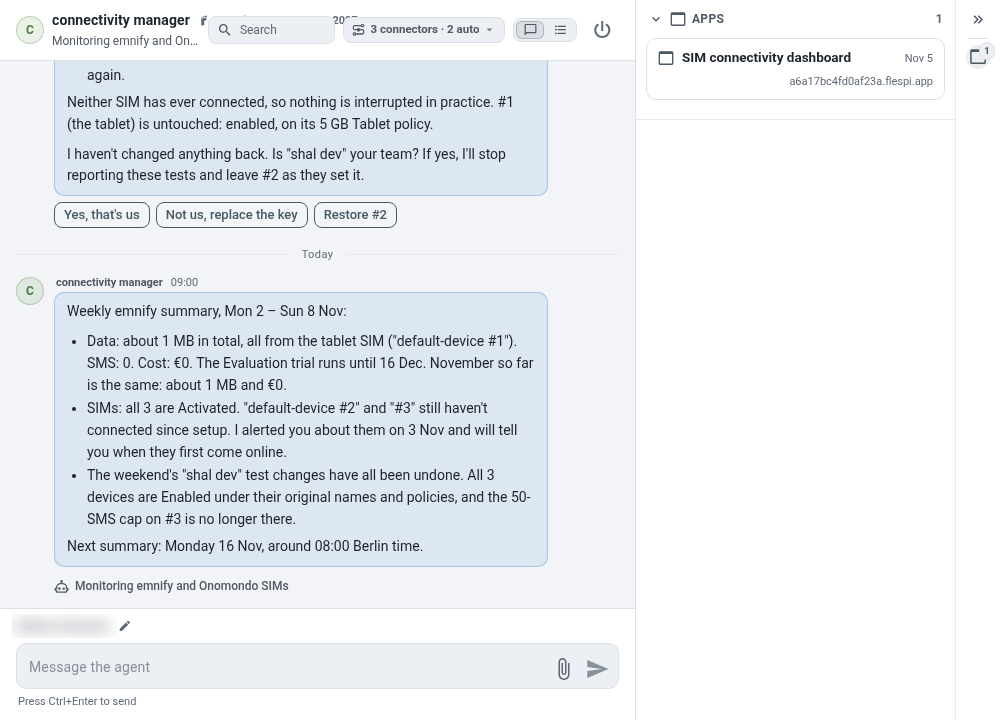
panels- the side panel blocks to show, for examplepanels=tasks,apps, orpanels=0to hide the side panelbubbles- message bubble colors, for examplebubbles=own:blue,agent:greenrealm- the realm whose users sign in with the login button instead of a token in the link
For example, the link with panels=apps&bubbles=agent:blue shows the agent replies in blue and only the Apps block in the side panel:
Paired with a persona, the embedded chat is a branded assistant for the people you serve.