MediaBox is the flespi app for video telematics. It shows the photos, videos and tachograph files your devices uploaded to their media storage, requests new footage from the device, plays live streams and holds audio sessions with the vehicle. Open it at mediabox.flespi.io, use it on the media tab of a device in the flespi panel, or embed it into your own application. MediaBox is open source.
Device media
The left drawer lists your devices. Search them by name, ident or ID, keep only the devices with media with the With media only switch, and pin the ones you work with to the top. Pick a device and a day in the calendar, where a dot marks the days with media. The files of that day are shown as a table or as a grid of previews, and the timeline at the bottom shows one lane per camera channel.
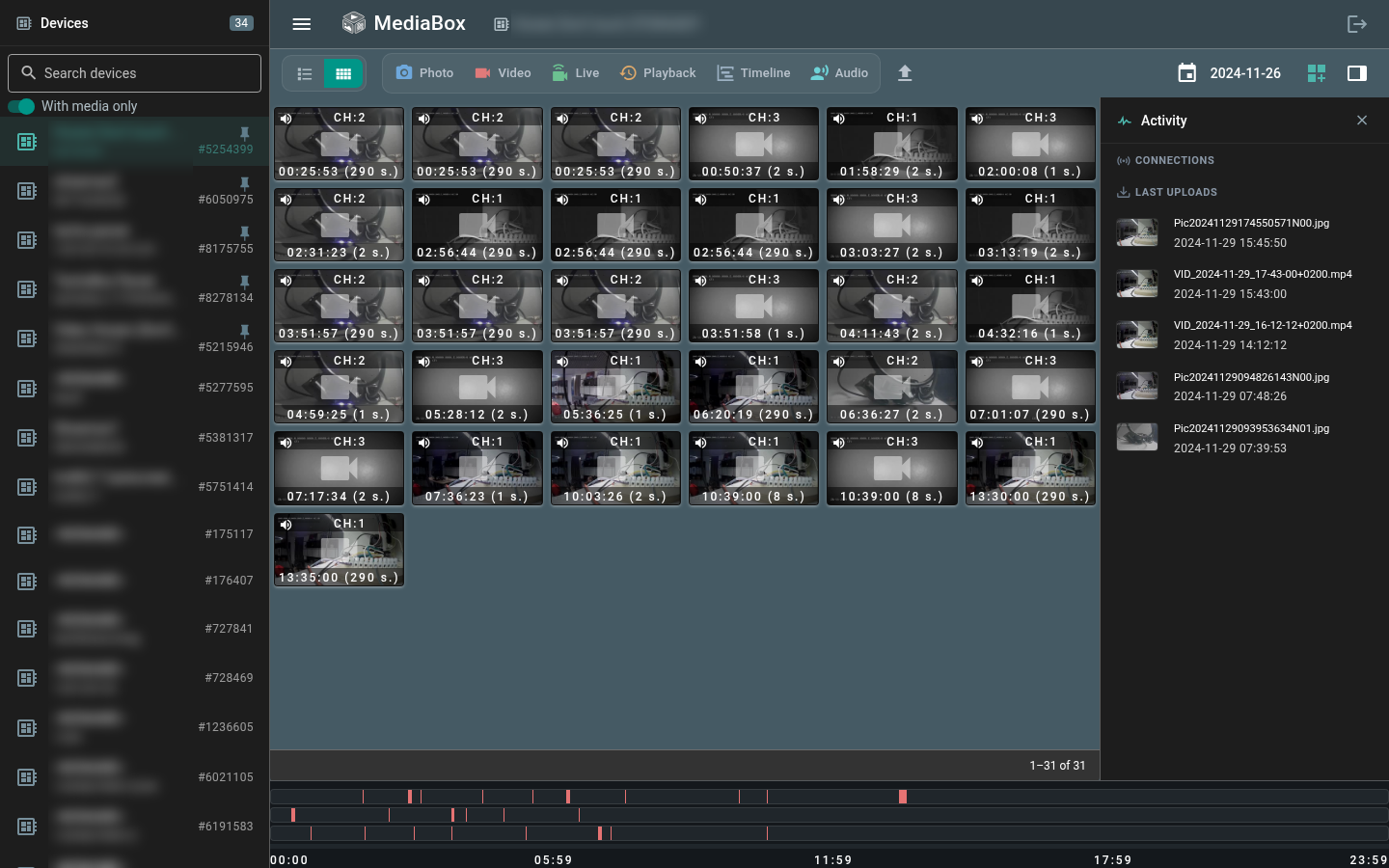
Click a file to view or play it. In the table you can protect a file from rotation with the lock icon, delete it, share it, or open the device messages of that moment in Toolbox. Select several files to download or delete them at once, or to open several tachograph files in TachoBox as one timeline. The upload button adds a file with your metadata to the device media storage.
The Activity panel on the right shows the device connections, its queued requests and the latest uploads. A request that is not delivered yet can be canceled there, and a device connection can be dropped.
Requests to the device
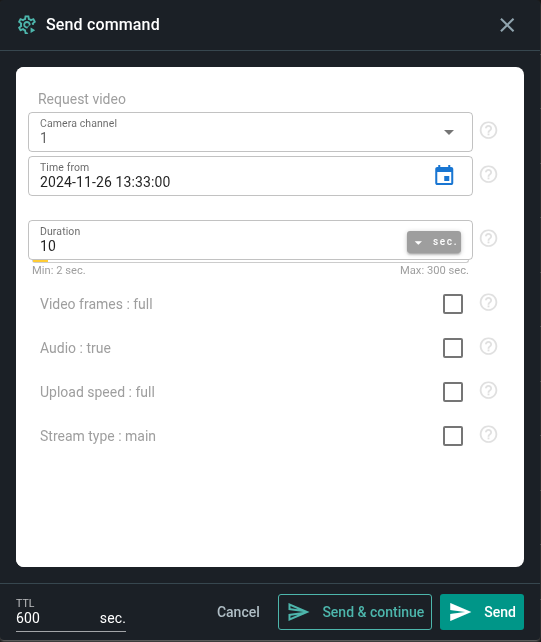
The toolbar buttons send the device commands, each with a form built from the device protocol:
- Photo - takes a picture with the selected camera
- Video - downloads a clip from the device memory, see Video download
- Live - starts a live stream
- Playback - streams the video recorded on the device, see Playback video
- Timeline - asks the device which periods it has video for, see Video timeline
- Audio - starts an audio session, see Live streams and audio
Devices that stream all cameras in one request, such as Streamax, also offer multi-channel live and playback. A request goes to the device commands queue with the TTL set under the form, so an offline device gets it once it connects. Send & continue keeps the form open to send another request. The periods returned by a timeline request are shown on the channel lanes: click and hold a lane to request media of that moment.
Camera wall
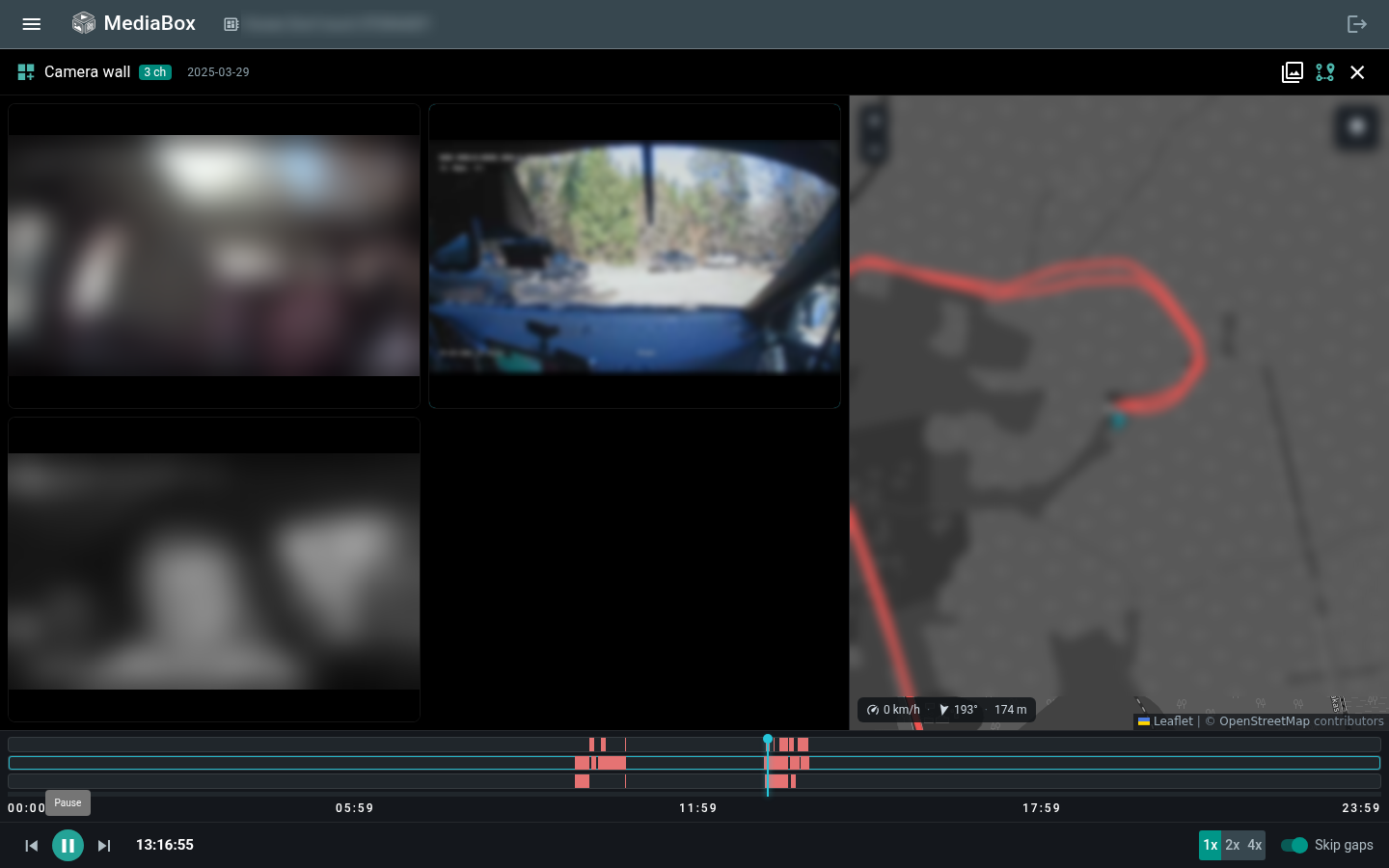
The camera wall button plays all channels of the day in sync on one timeline, next to a map with the device track and its position at the playback moment. Change the speed with 1x, 2x and 4x, and turn on Skip gaps to jump over periods without video. A file clicked in the list opens on the wall and stays over its channel until you remove it.
Live streams and audio
Live streams of the device, including the ones started by other users, appear on the live streams wall, with the number of active streams on its button. MediaBox plays them over WebRTC, HTTP-FLV or HLS, see Live video streaming. A stream that has ended stays on the wall.
The Audio request starts a two-way audio session in one of three modes: listen to the cabin, intercom to talk both ways, or broadcast to speak to the vehicle. In the session panel, hold the button to talk or keep the microphone open, tune the echo suppression and boost the quiet incoming audio. Closing the panel keeps the session running on the device, hang up to end it.
Sharing a file
The share icon of a file gives its download link, a link to open it in the MediaBox player, and the HTML code to embed the player into a page. The player link has the form https://mediabox.flespi.io/#/uuid/{UUID} and shows an image, a video clip or a live stream by its UUID. Anyone with these links can open the file, no token is needed.
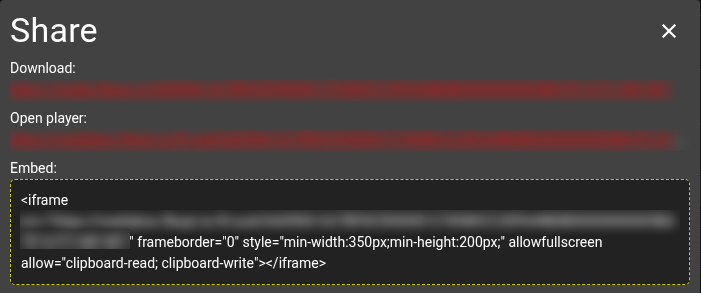
For a tachograph file the share dialog gives a TachoBox link. Include my token (insecure) adds your token to it, so anyone with the link gets all data the token can access, not just this file.
Embedding
Open or embed MediaBox for one device with a link of this form:
https://mediabox.flespi.io/#/device/{DEVICE_ID}?token={TOKEN}
Without the device part, https://mediabox.flespi.io/#/?token={TOKEN} opens the list of devices the token can access. Without a token, MediaBox shows a button to log in to flespi. Audio sessions need the microphone, so allow it in the iframe:
<iframe src="https://mediabox.flespi.io/#/device/{DEVICE_ID}?token={TOKEN}" allow="microphone; autoplay; clipboard-read; clipboard-write" allowfullscreen></iframe>
Use a token limited to the devices you show. An ACL token needs these device submodules:
- media - files, uploads, protection and deletion
- commands, commands-queue, commands-result - requests to the device and their results
- connections - device connections in the Activity panel
- logs - request delivery and new files
- messages - the device track on the map
- telemetry - the current device position