The Traccar connector gives your flespi AI agent access to a Traccar server: Traccar documentation and API expertise plus direct work with the devices, users, geofences, notifications and reports of your server on your behalf. Use it for a Traccar server that looks after itself: the agent tells you why a vehicle froze on the map, sets up a new driver with the right access, sends you the overspeed alert while the van is still on the road, and does it whether your trackers feed Traccar through flespi or connect to it directly.
New to flespi AI agents? Read the flespi AI agents article first: what agents are, how they reason and sleep, and how approvals keep you in control. This article covers the Traccar side of the story.
1. Connect the server
Two configuration fields, url and token. The url is the address of your Traccar server over https, for example https://traccar.example.com, without /api and without a trailing slash. The server has to answer from the internet with a valid certificate and run Traccar 6.2 or newer (the demo servers run the latest release).
The token you issue yourself in the Traccar web app: open Settings, then Preferences, and in the Token section set the expiration date far ahead, then generate the token with the refresh button and copy it. When a token expires, the agent loses the server, notices it at the next call and asks you for a fresh one:
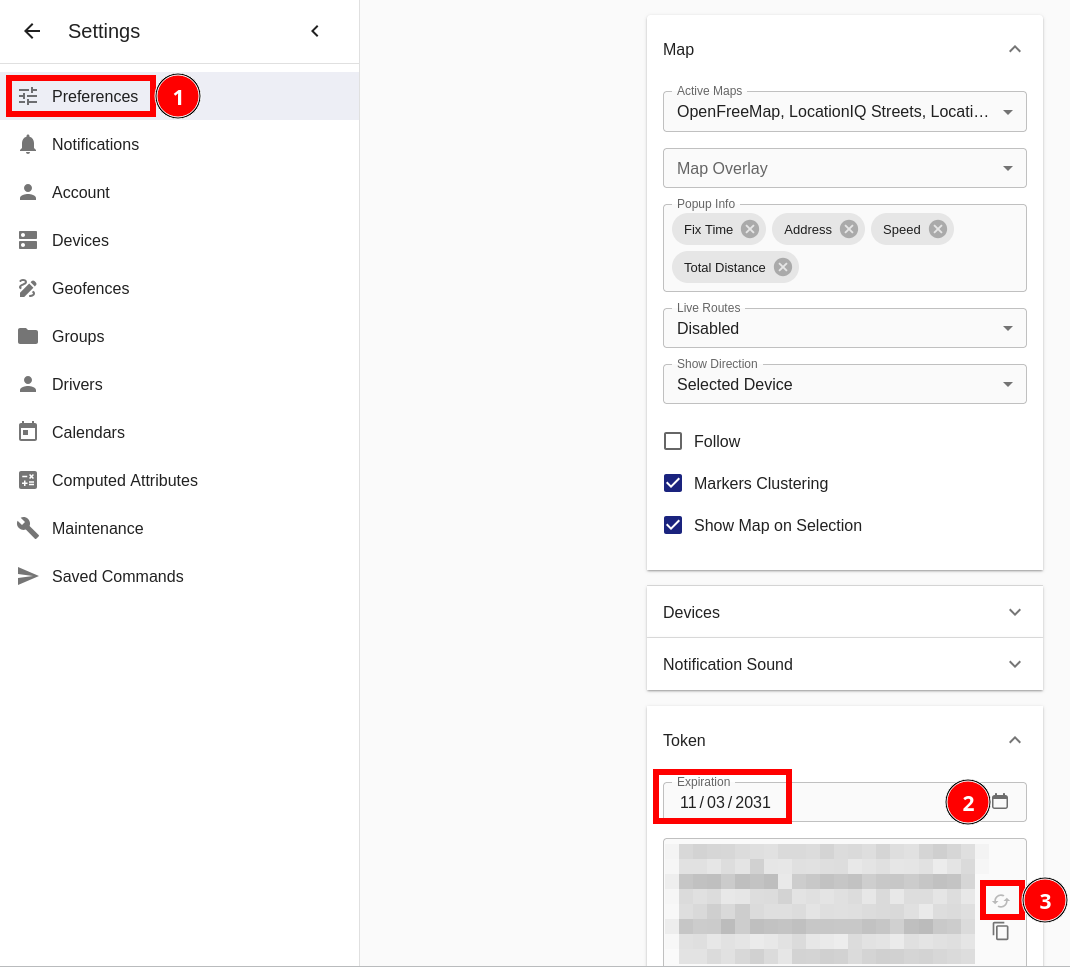
The token carries every right of the user it belongs to. Traccar has no read-only token, so the user you generate it as decides how far the agent reaches: an administrator token covers every device, user and setting of the server, a manager token the users it created and their devices, and a standard user token only the devices, groups and geofences linked to that user. When you want the agent to look after one customer or one depot, create a Traccar user for that and take the token from there.
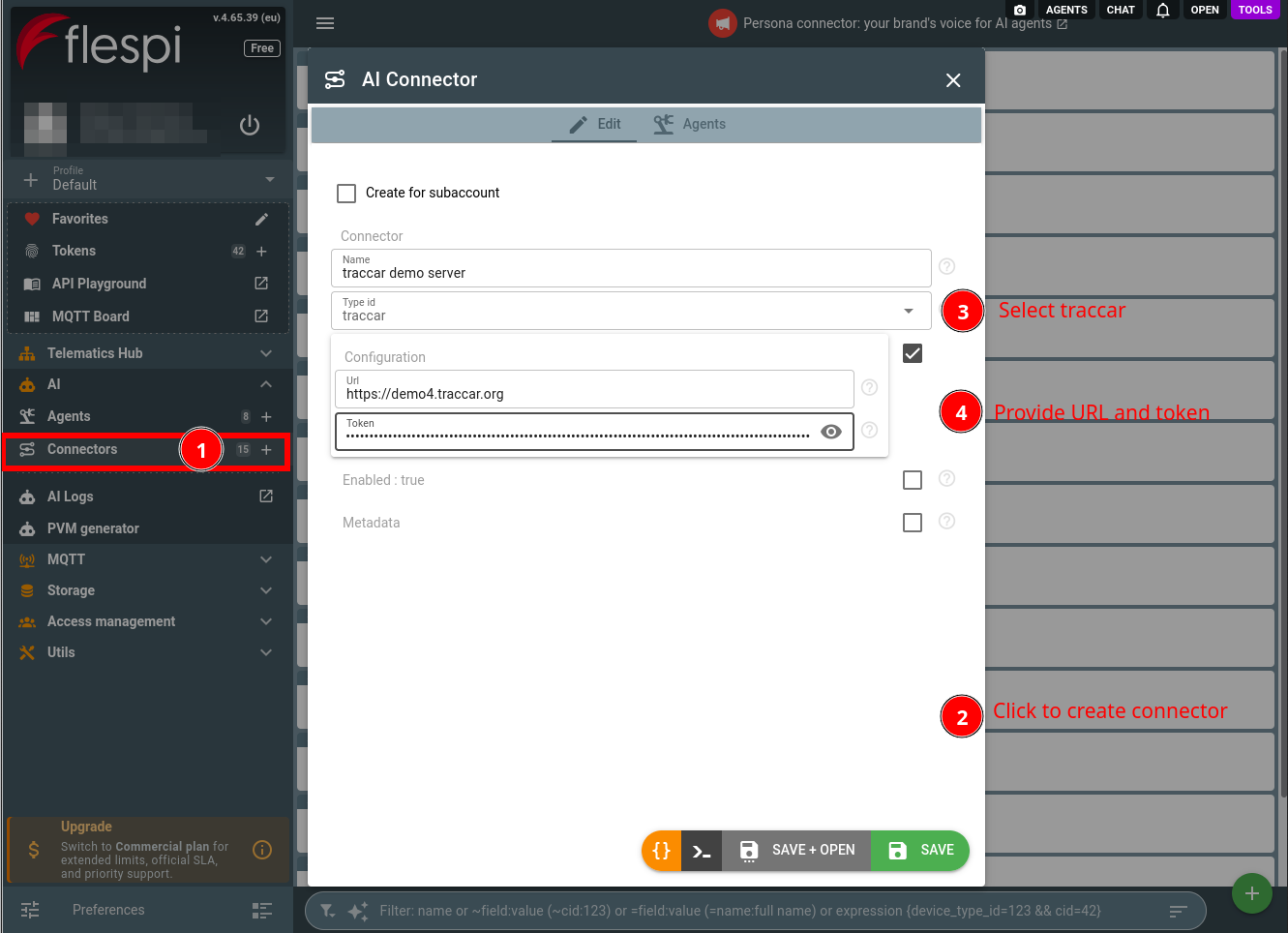
Create a connector of the traccar type: open the flespi panel, navigate to AI, then Connectors, click the "+" button, pick the type and fill in the two fields:
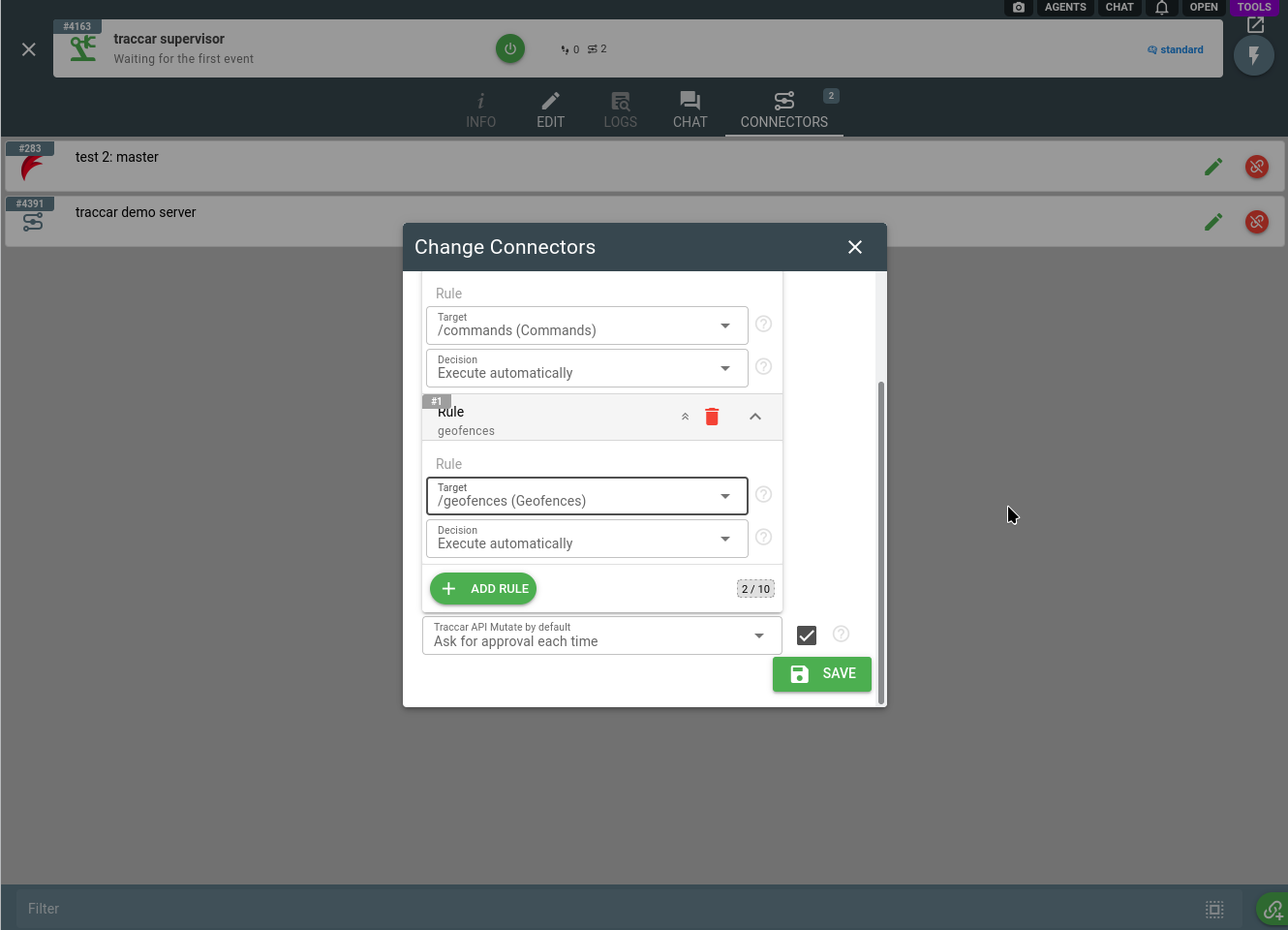
Assign the connector to your agent (create one if you have none yet), choosing the rules for the account-changing Traccar API calls: the default, which asks you every time, and above it a rule for each part of the server you want handled differently, such as commands sent to devices, geofences, notifications, users and permissions or server settings. The pencil button on the Connectors tab of the agent opens the same rules at any time:
2. Work with the agent
The agent knows Traccar: it consults the official documentation and the API reference on its own, so you can talk about devices and groups, who sees what, geofences, notifications, computed attributes, maintenance and drivers the way you would with an experienced Traccar administrator.
Reading the server is free and autonomous. The agent lists the fleet, checks which devices are online and where they are, reads the events of yesterday and the users and their links, all through a surface that physically cannot change anything. Ask for a report and it pulls the route, the trips, the stops, the summary or the events of the period you name and tells you what stands out. Traccar keeps speeds in knots and the agent converts them for you, so a van that did 56 knots is a van that did 104 km/h in the answer you read.
Because the agent can also change things, a few chores you used to postpone become one sentence: a new dispatcher who should see only the northern depot, a geofence around the new yard, a maintenance reminder every 10000 km for every truck, a notification of the right type for the right people. The agent works out which users, devices and links are involved, shows you the exact calls and waits for your approval before anything leaves.
The same goes for the slow habits of a growing server. Ask it which devices have not reported for a week, which vehicles have no speed limit set, or which geofence alerts reach nobody, and you get a list you can act on that afternoon.
3. Hear the server live
The agent can also listen to your server as it happens. Traccar keeps a live connection open for its web app, and the agent holds the same one with your token: every position a vehicle reports, every change of status, and every event Traccar raises reach the agent the moment the server has them.
What makes this worth having is that the agent is not limited to Traccar's own alerts. It runs your logic on the stream, in a small script it writes and keeps: a fix with too few satellites, a vehicle that moves outside working hours, a trailer that has not moved since Friday, an ignition that stays on for an hour in the yard, a pattern across several vehicles rather than one. It filters quietly on every report and wakes up to tell you, or to act, only when something deserves it, with a throttle of its own design so a van parked under a roof cannot flood you. Traccar's own alerts, a geofence left, a speed limit crossed, a service due, arrive the same way, and the agent keeps the Traccar notification rule they need in place for you, the one that also shows them as popups in the web app.
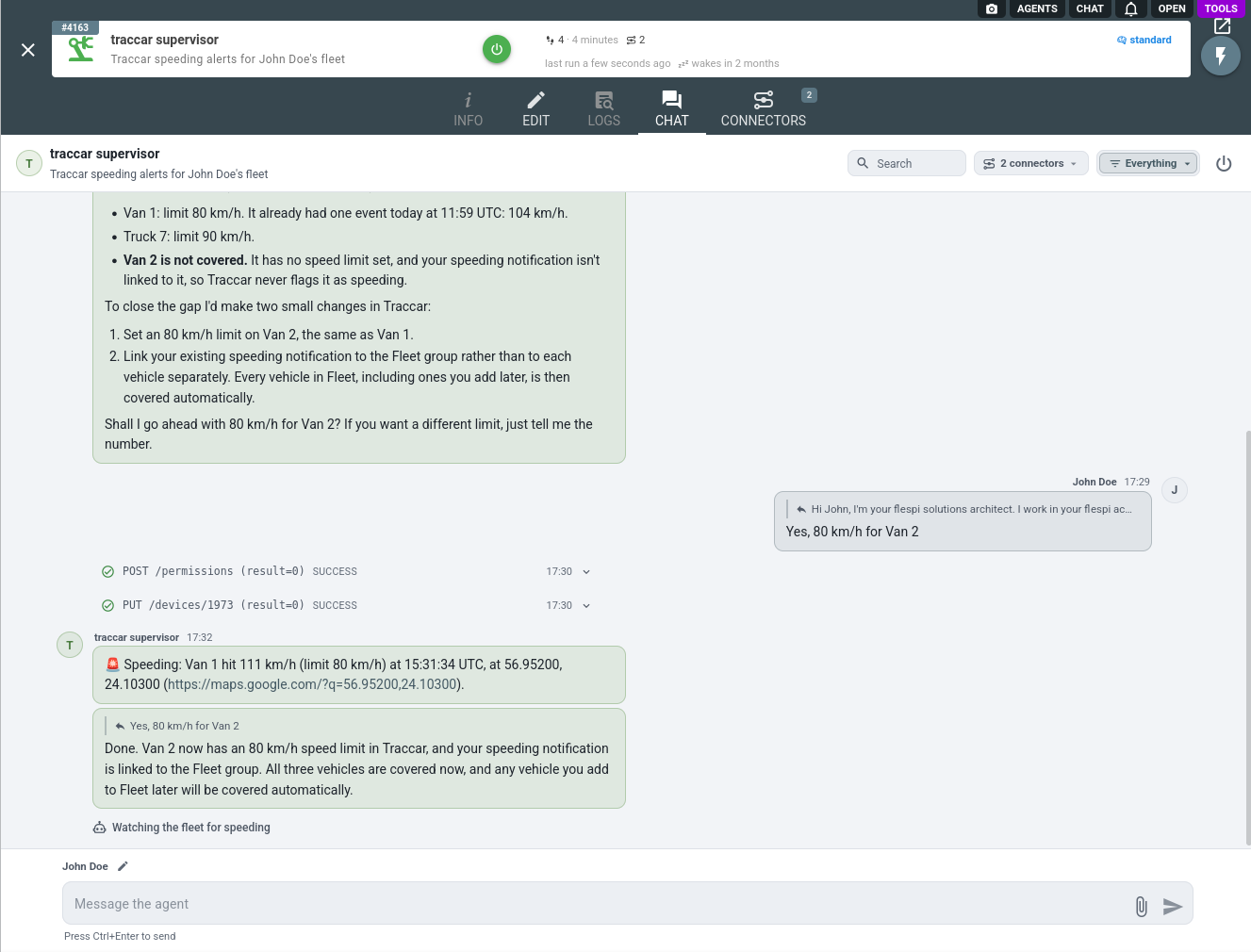
Ask for a low-satellite watch and the chat reads, a minute after the fix: "Van 1 reported a fix with 4 satellites at 18:02 UTC. The fix was still marked valid, and the van was moving at about 30 km/h."
Connectivity is watched the same way: a vehicle that goes quiet or comes back is a status change on that connection, no rule needed. A vehicle fed through flespi turns "unknown" rather than "offline" when it stops reporting, because its connection to Traccar never drops, only the data does, and the agent knows to look for both.
4. When the vehicles also report to flespi
When flespi feeds your Traccar server, it does so through the flespi stream of the Traccar type: the stream sends the messages of your devices to the server on port 5149, one way, and Traccar matches the flespi device ident to the unique identifier of its own device. When the agent holds the flespi connector of the same account as well, it sees both sides.
A vehicle that looks wrong in Traccar gets traced from the source. The agent reads what the device really sent and what the stream delivered, then what Traccar stored, and tells you which side the evidence points to. A van frozen on the Traccar map is the classic: the tracker was reporting fine, the stream was healthy, and the agent found that someone had edited the device ident in flespi so that it no longer matched the Traccar identifier, which made Traccar drop every message. One corrected ident, approved by you, and the van moved again.
Commands deserve a word. A vehicle fed through a stream is connected to flespi, not to Traccar, and Traccar can only queue a custom command for it that never reaches the tracker. So when you ask the agent to reboot a vehicle "from Traccar", it turns the request into a device command in flespi, with the approval and the verification that come with it, and the result shows up in Traccar with the next message. Vehicles that connect to Traccar directly keep using Traccar commands.
5. Approvals and logs
Every account-changing Traccar API call goes through the agent approval rules as the traccar_api_mutate operation type, and by default each call becomes an approval request. You review the exact call, its path and its body before approving, here the speed limit asked for in the chat as the device update and the permission link it becomes:
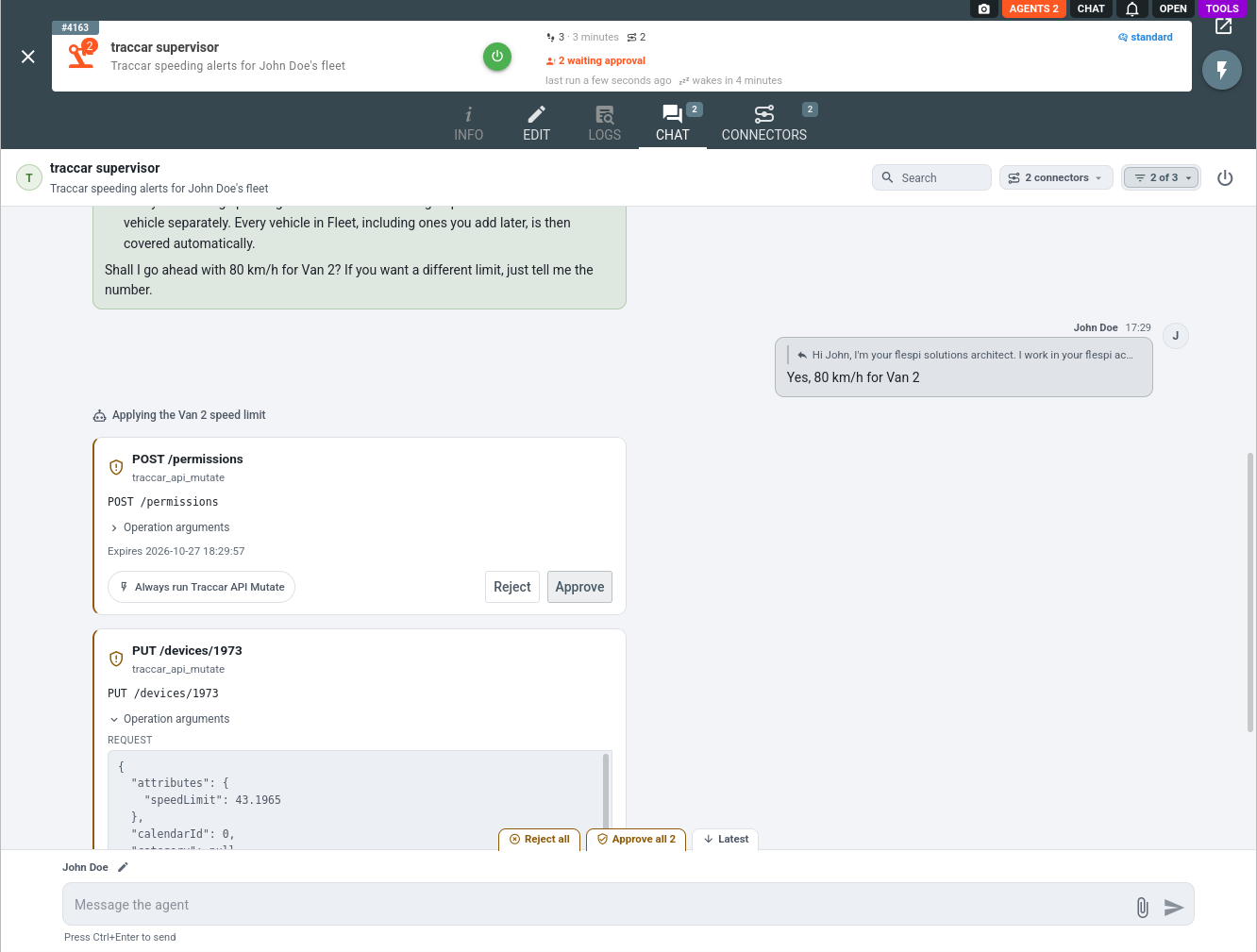
Rules let you delegate the routine and keep the sensitive part under review, for example geofences and maintenance on automatic execution while commands sent to devices, users, permissions and server settings still ask.
Mind what the default protects before relaxing it. Removing a device takes its whole history with it, users and permission links decide what every person on the server sees, server settings apply to everyone, and a computed attribute rewrites the positions of every device it is linked to. A command to a group of vehicles reaches all of them at once. The agent coordinates each of these with you either way, the rules only decide whether you confirm each call before it leaves.
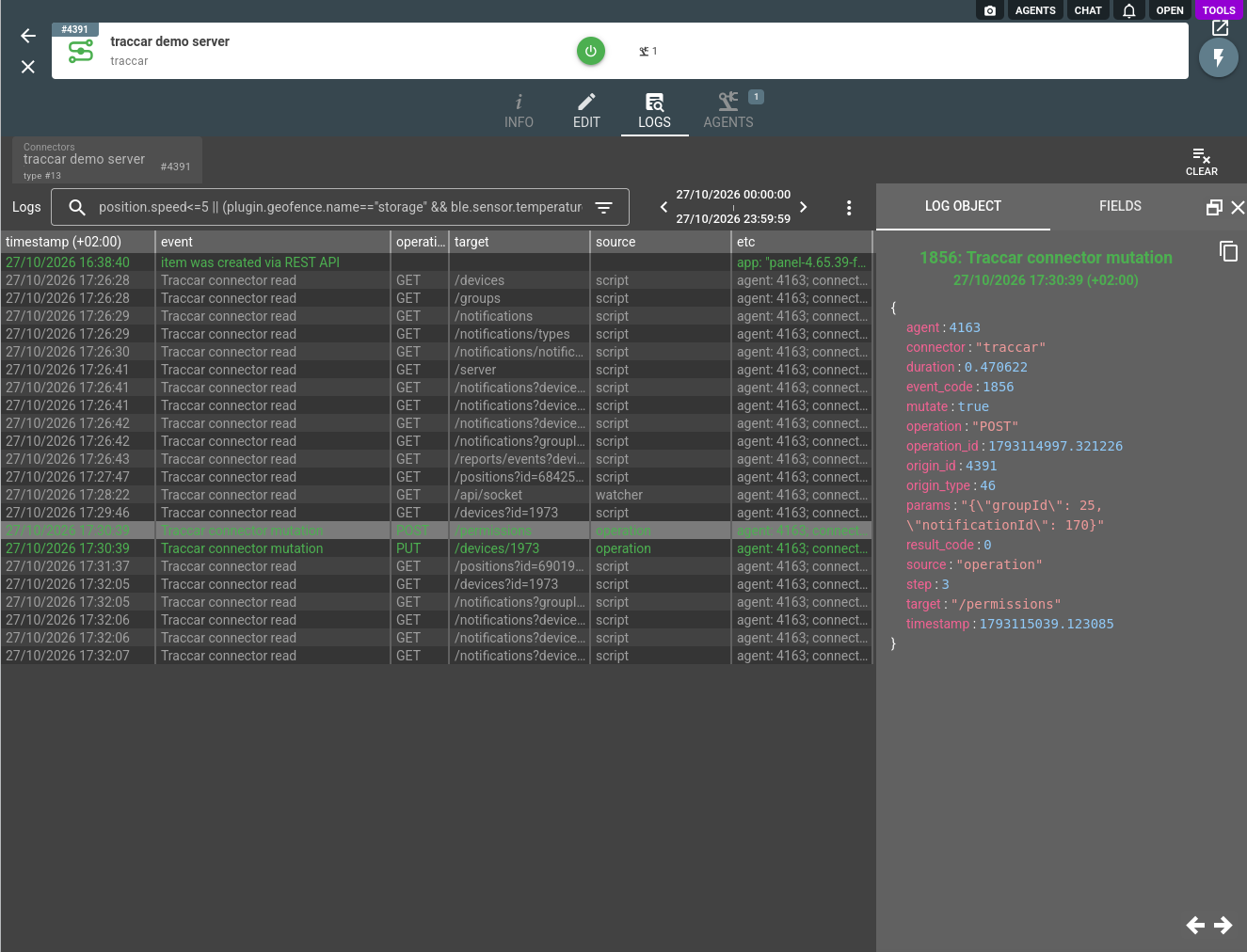
Executed changes land in the agent conversation history as traccar_api_mutate_executed records, and every Traccar API call the agent makes on your behalf, reads included, is recorded in the connector logs with the method, path and result:
To put the agent in front of the people you serve rather than yourself, pair the connector with a persona: the agent takes your name, speaks their vocabulary, and under branded disclosure never mentions flespi.
A system of yours that has no connector type of its own, an ERP, a ticketing system or the intake of an authority, joins through the HTTP API connector: the agent bridges it with your Traccar server, reading one side and writing the other under your approval rules.
The Traccar connector is one of several an agent can hold: browse the full connector list to give your agent more capabilities, such as a Telegram or Slack chat with the agent and its alerts.
Subscribe to the flespi AI and MCP change log to stay in sync with any updates.