Device Automation is a free no-code app for automating your trackers, built by a flespi AI agent and maintained by the flespi team. Click together what should happen: a speed alert to Telegram, a command when the ignition turns on, your tracker messages forwarded to your server, an email when a vehicle leaves an area you draw, a morning list of the trackers that are offline.
Every flow you turn on runs on standard flespi components in its own subaccount and keeps running on its own, with no AI in the loop. This keeps your automations separate and fully under your control: disable the subaccount to switch a flow off, or delete it to remove everything the flow created.
The app is also a showcase of apps built by flespi AI agents. Open it at db609927971b9a80.flespi.app/apps/device-automation and sign in with your flespi account. The user guide walks you from the first sign-in to a working Telegram speed alert in five minutes.
1. What you can build
A flow has three parts: the trackers it runs on, a trigger, and the steps that follow.
- when — every new message, a tracker goes offline and comes back, a tracker enters or leaves an area, a trip starts or ends, a condition lasts some minutes, or on a schedule;
- check and compute — only continue if a parameter meets a condition, calculate a value, if / otherwise branches, check areas, add a street address;
- act — send a command, change a setting, send to my server, publish to flespi MQTT or another MQTT broker, send to Telegram, send an email, write to the event log, forward to another platform, add an event to the trackers' messages for another flow to pick up.
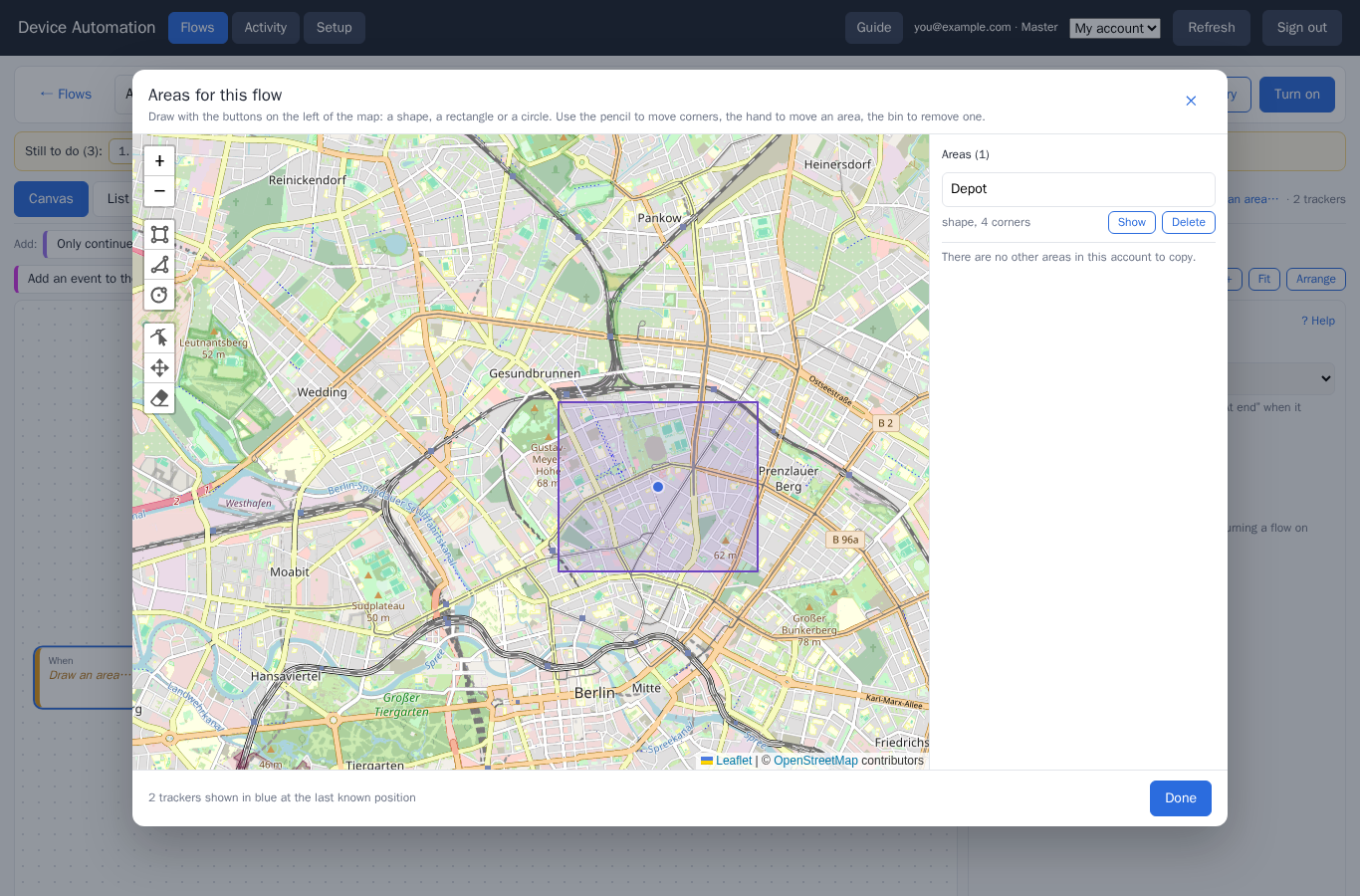
Templates cover the common cases: a speed alert, data to your server, a command on an event, an offline alert, an area alert. Start from one or from a blank flow, and export a flow to a file to import it elsewhere.
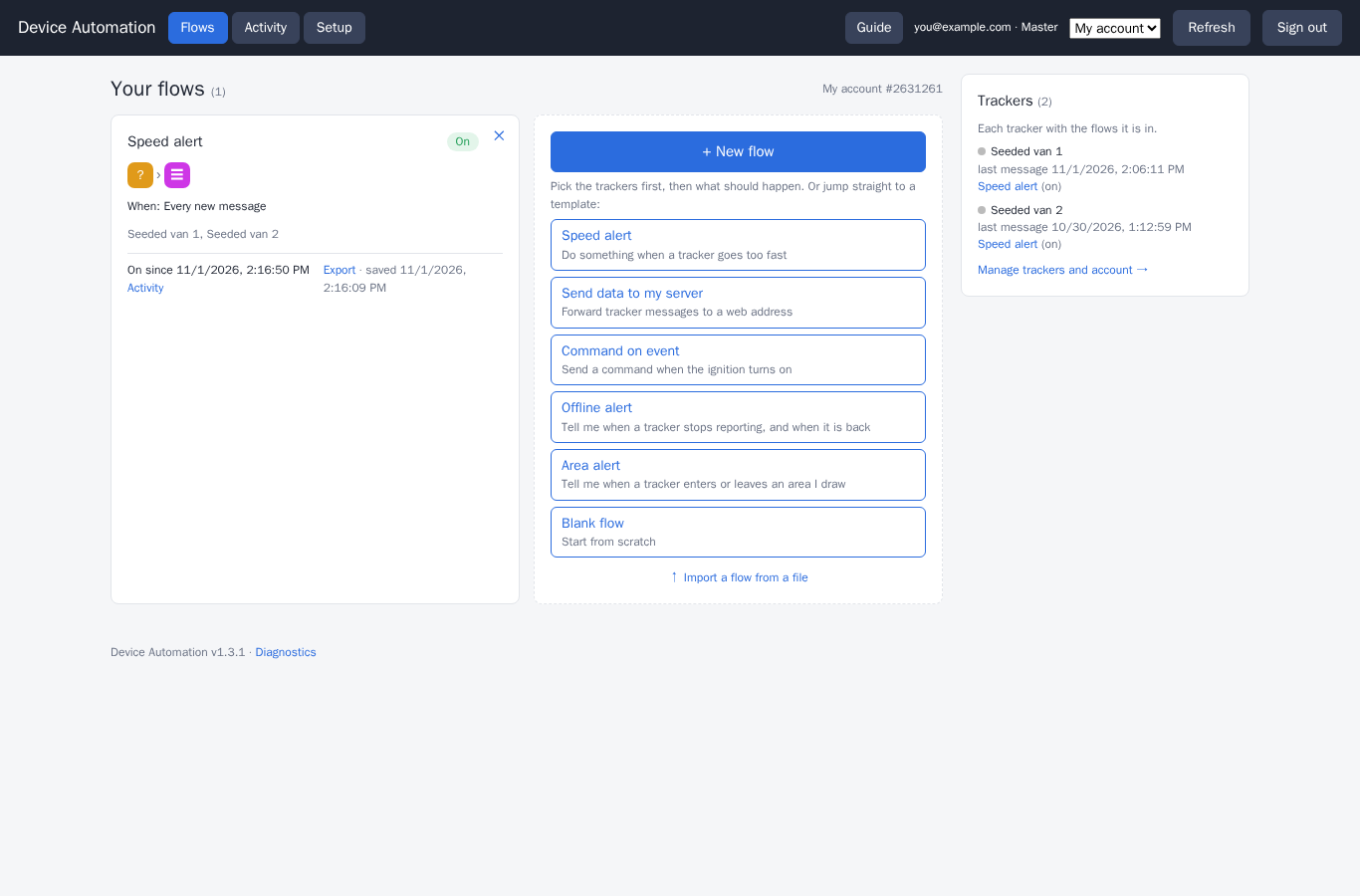
2. How to start
Press New flow, pick the trackers, then choose a template or build the steps yourself on the canvas or in the list view. Each block opens its settings on the right, with values picked from your trackers' real parameters. The Setup page shows what the account holds, and can add a channel and devices for a fresh account.
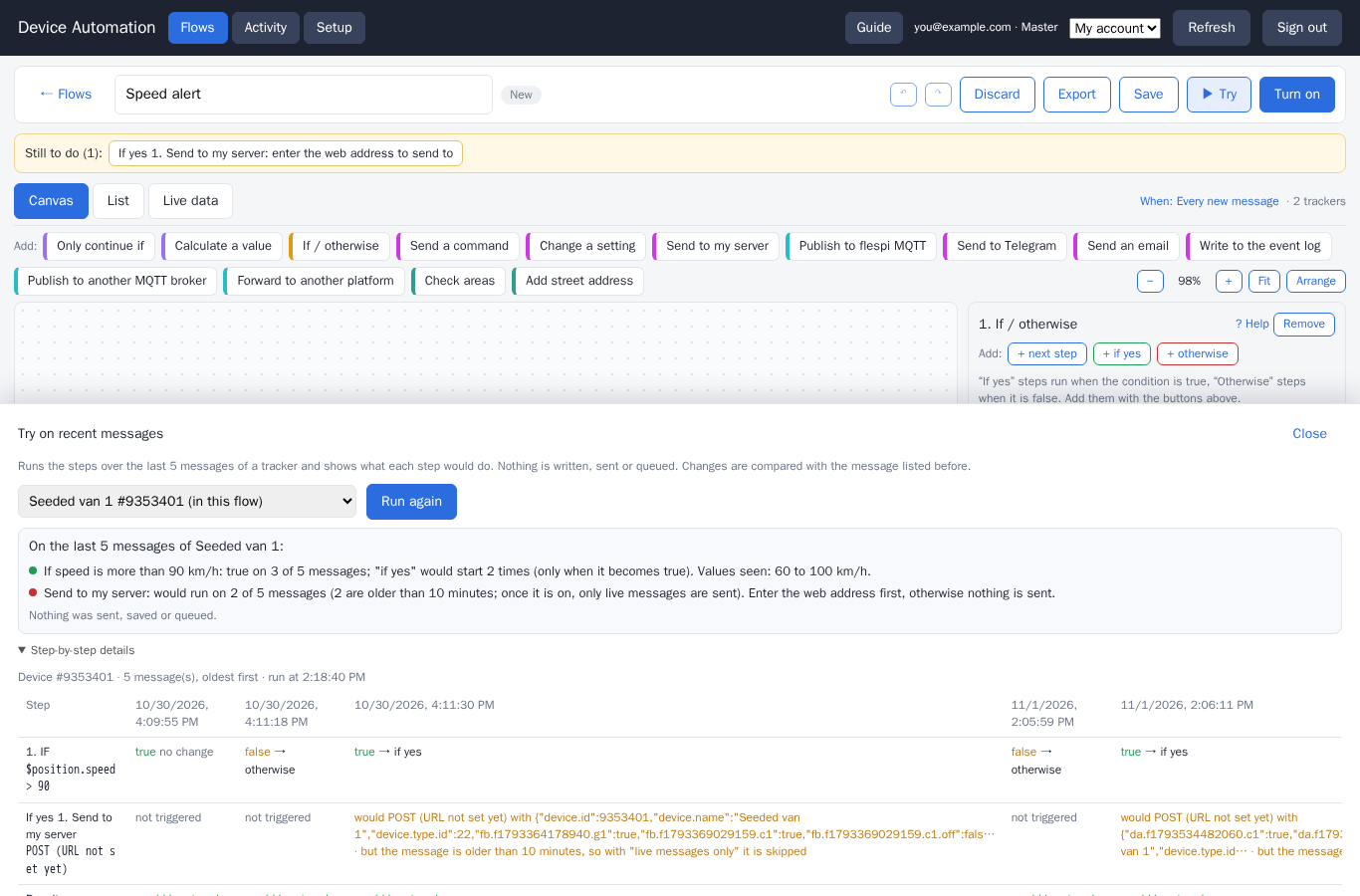
Press Try before anything goes live: the app runs the steps over the last messages of a tracker and shows what each step would do. Nothing is sent, saved or queued. Event flows replay the trigger over the recent history of a tracker, and scheduled flows show their next runs.
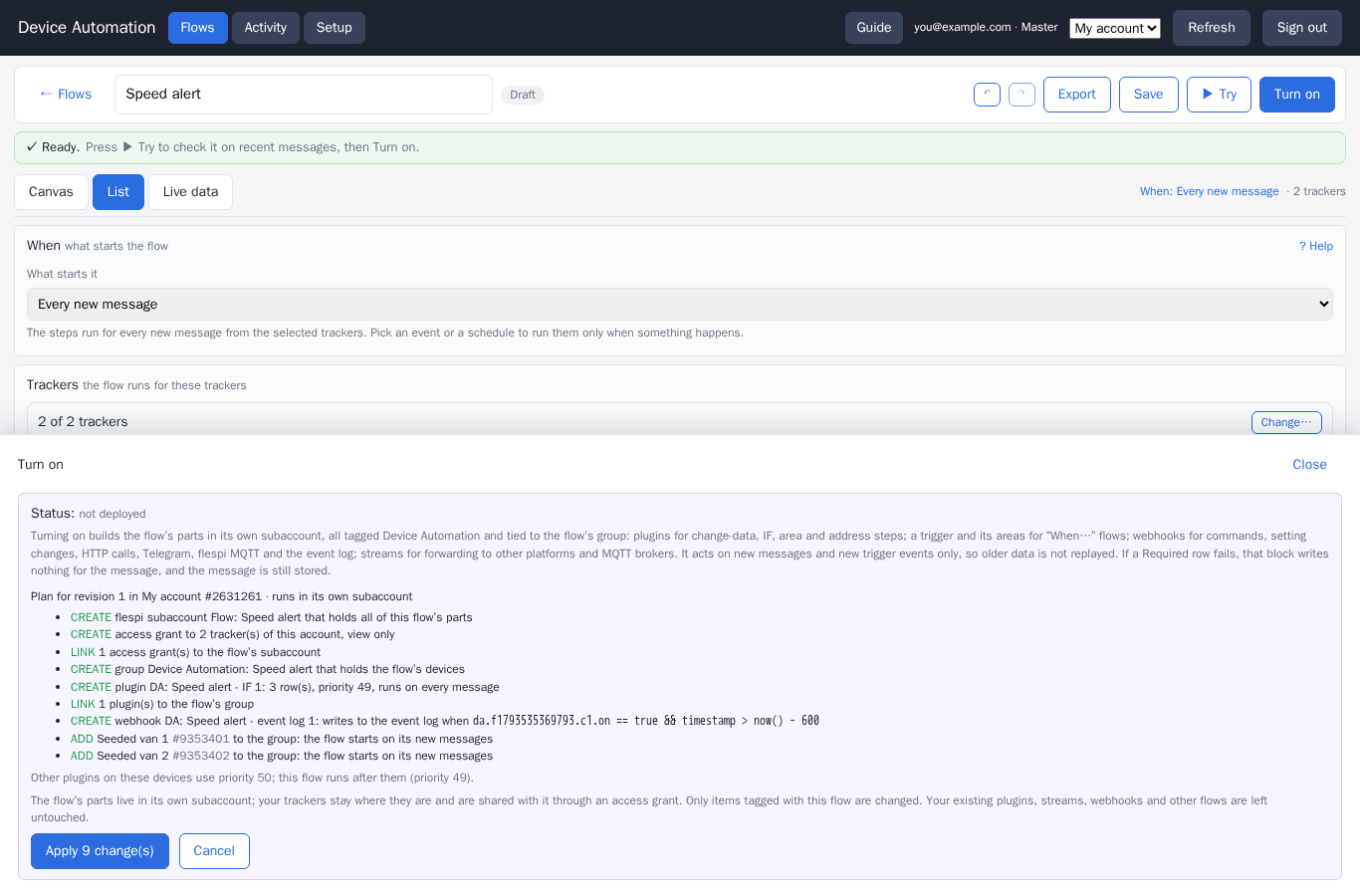
Save and press Turn on. The app shows a plain-language plan of what it will create in your account, and only after your confirmation deploys the flow. From then on new messages of the flow's trackers go through it. The Activity view shows the flow working, Live data shows the latest values of each tracker, and Pause or Undeploy stop it at any time.
3. Good to know
- what it creates — each flow lives in a dedicated subaccount of your account, tagged Device Automation, holding the plugins, webhooks, streams and storage the plan listed. Undeploy removes them. A flow acts on new data only and leaves your existing channels, trackers and plugins as they are. What it already did stays done: values it added to messages, sent alerts and changed settings remain after it is removed.
- costs — the app is free. The components a flow creates count against your plan like any plugin, webhook or stream you create yourself, and every request a webhook makes counts toward your account's API calls.
- sign-in — the flespi login window hands the app a token with full access to your account, which turning a flow on requires, kept in the browser session only. Sign out when you leave a shared computer.
- your own version — point your agent at the app link: it copies the app into your account and adapts it to your needs, so the app stays with you even if its maintainer stops.
- support — the flespi team maintains the app, with no guarantee of availability or compatibility. Report issues in the flespi panel chat with the text from the page's Diagnostics link.
Want a tool shaped to your own work, a dashboard, a portal, a console? Ask your agent, as described in Building apps with flespi AI agents.